Occasionally, trying to launch a program on Windows 10 triggers the message "this app can't run on your PC."
It's a frustrating roadblock, but the fixes below should get you past it.
Common causes behind the "this app can't run on your PC" error:
- Access denied – This shows up when your user account isn't configured correctly. Setting up a new administrator account usually resolves it.
- Game-specific errors – Certain games refuse to launch.
- Windows Store issues – The system blocks access to some Store apps.
- Batch files – Try running the batch file with administrator rights first; if that doesn't work, follow the steps below.
- Publisher errors – The "Contact the software publisher" message is a frequent complaint that stops people from opening certain programs.
- Antivirus conflicts – Security software can also trigger this same error.
Ways to fix the "This app can't run on your PC" error:
Method 1: Duplicate the .exe file
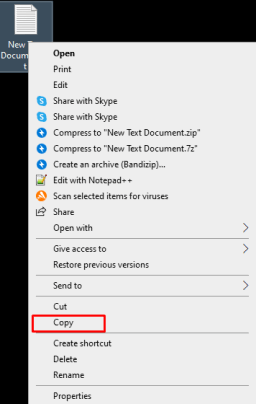
One simple fix worth trying first is making a copy of the file you're trying to launch.
Right-click the file, choose "Copy," then paste it in the same folder. Try launching the copy and see whether the error disappears.
Method 2: Turn off SmartScreen
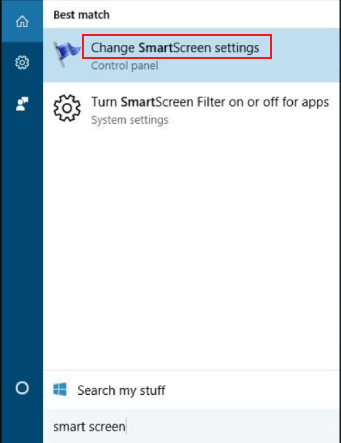
- Press the Windows key and type
smart screeninto the search box. - Click Change SmartScreen from the results shown.
- Go to Security and find Windows SmartScreen.
- Click Change settings and select "Do not do anything."
- Click OK to apply the change.
SmartScreen exists to guard against phishing and malware.
Still, plenty of users find it's the reason a legitimate app refuses to open.
Method 3: Update the Microsoft Store app
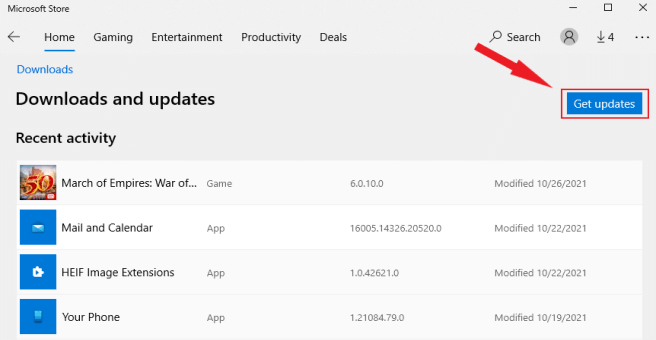
If Microsoft Store apps won't open, an outdated or buggy Store version could be the culprit. Check for updates and grab the latest release:
- Launch the Microsoft Store app from the Start Menu.
- Click the three-dot menu and select Downloads and updates.
- Click "Get Updates."
Method 4: Set up a new administrator account
- Open Settings and go to Accounts > Family & other users.
- Under "Other users," click Add someone else to this PC.
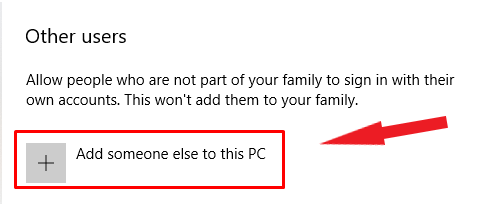
- Choose "I don't have this person's sign-in information."
- Select "Add a user without a Microsoft account."
- Type a username and password for the new account.
- It should now appear under Other users.
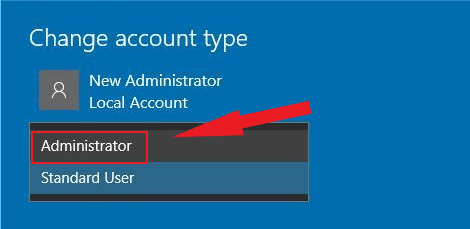
- Select it, then click "Change account type."
- Pick Administrator from the "Account type" dropdown and click OK.
Some users have hit this error even doing something as basic as opening Task Manager.
Setting up a fresh administrator account has resolved it most of the time.
Method 5: Turn off any Proxy or VPN you're using
- Open the Start Menu and launch Control Panel.
- Click Internet Options.
- Open the Connections tab.
- Click LAN settings.
- Uncheck "Use a proxy server for your LAN."
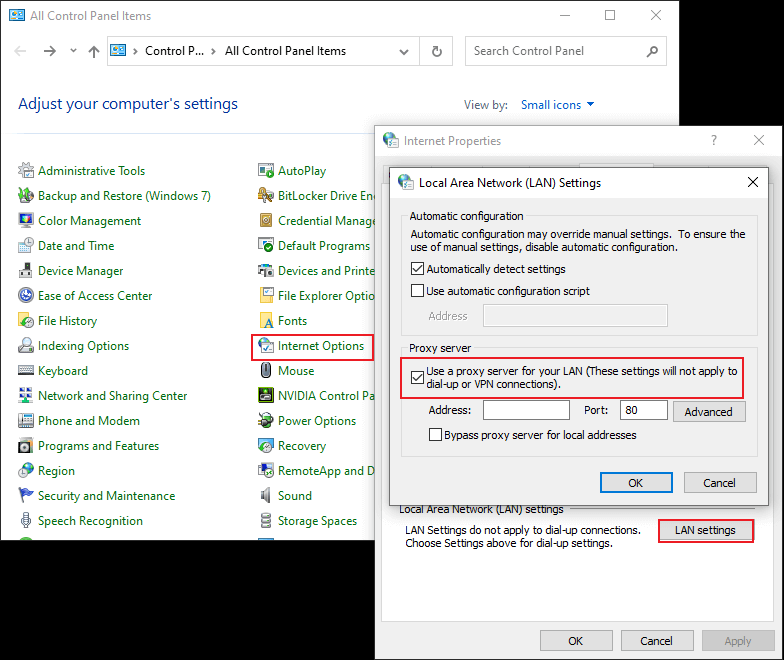
- Click OK, then sign back in to your Microsoft account.
If you rely on a proxy or VPN, it may be blocking the connection to Microsoft's Store servers. Turning it off can restore normal app launches.
Method 6: Run an SFC scan
- Open the Start Menu, type cmd, right-click Command Prompt, and choose Run as Administrator.
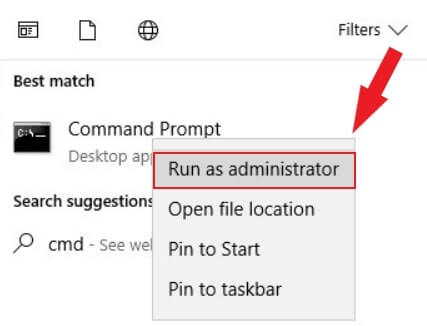
- Type
sfc/scannowand press Enter.
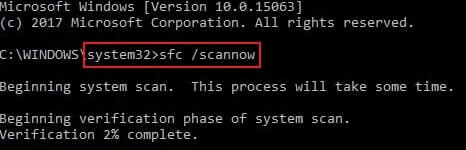
- Let the scan finish, then restart your PC. This should repair any damaged system files.
Method 7: Turn on App sideloading
- Open the Start Menu and click PC Settings.
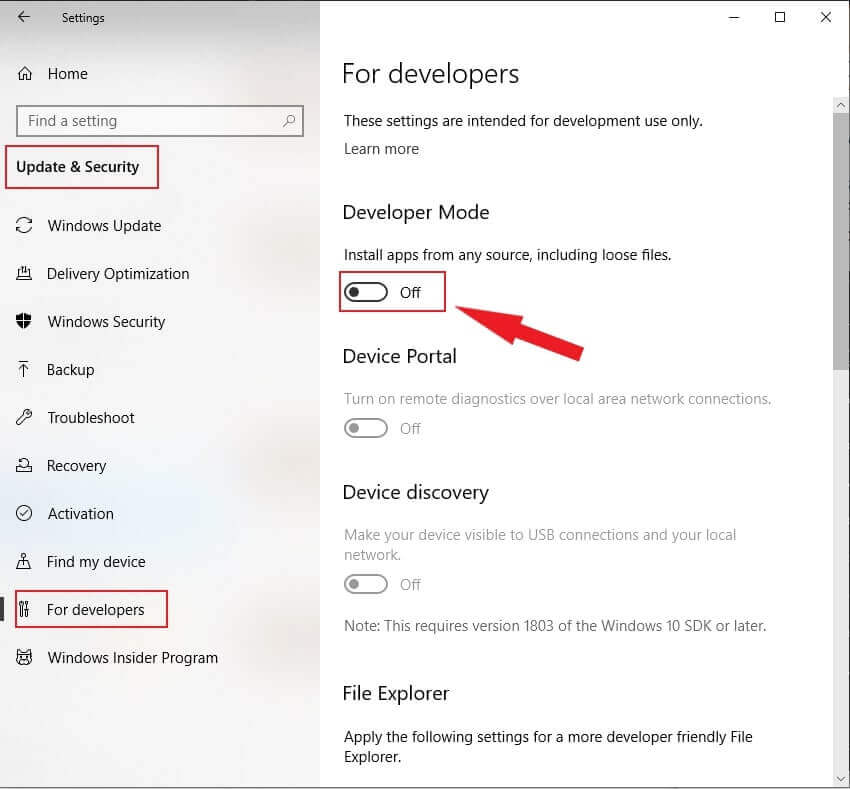
- Go to "Update&Security."
- Open the "For developers" tab and enable "Developer Mode."
This should stop the "this app can't run on your PC" error from returning.
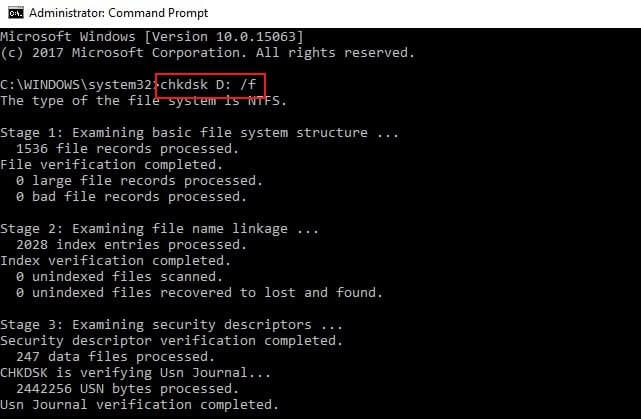
Method 8: Check your disk for errors
Disk errors can also trigger this message. Open Command Prompt as described earlier and run chkdsk C: /f
Method 9: Clear out your browser cache
Sometimes files get corrupted mid-download, leaving you with incomplete files or folders — often a sign that the browser cache hasn't been cleared in a while.
Take a look at this guide on how to clear your computer's cache with Revo Uninstaller Pro, browser cache included.
Method 10: Clear out temporary files
Leftover temp files can, in rare cases, slow your PC down and even trigger errors like this one. Clearing them out and reinstalling the affected app is worth a shot.
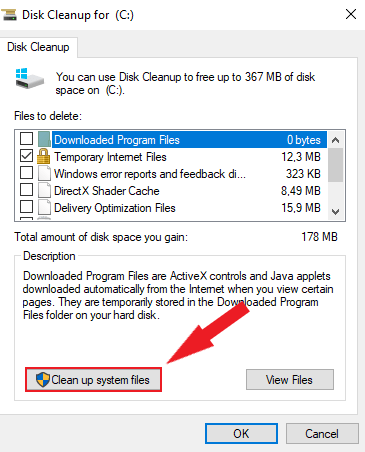
Here's how to clean up temporary files:
- Open the Start Menu, search for
Disk Cleanup, and launch it. - Pick the drive you want to clean.
- Choose "Clean up system files."
Method 11: Run a full Windows Defender scan
Malware causes plenty of problems on a PC, including errors like this one and apps refusing to open or install.
A full system scan with Windows Defender can rule this out.
- Open the Start Menu, type Windows Defender, and launch the tool.
- Click the shield icon in the left pane.
- Select "Advanced scan" in the new window.
- Choose "full scan" and start it.
Method 12: Update Windows 10
An outdated version of Windows could also be the reason certain apps won't launch.
To update:
- Open the Start Menu and click PC Settings.
- Search for "Windows Updates."
- Click "Check for Updates."
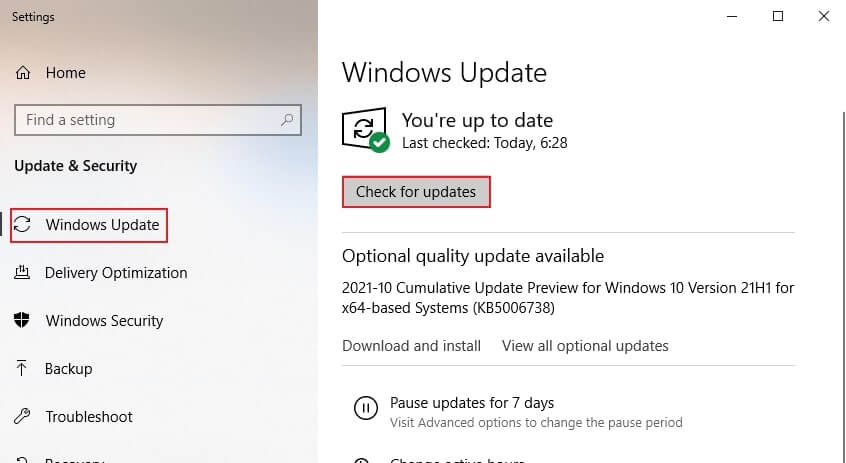
- Install whatever updates are pending.
Method 13: Check if your PC needs 32-bit or 64-bit software
Windows OS comes in 32-bit and 64-bit versions. It's possible you're running a 32-bit system while trying to open a 64-bit app.
Check your PC's specs to find out:
- Open the Start Menu and click PC Settings.
- Select System.
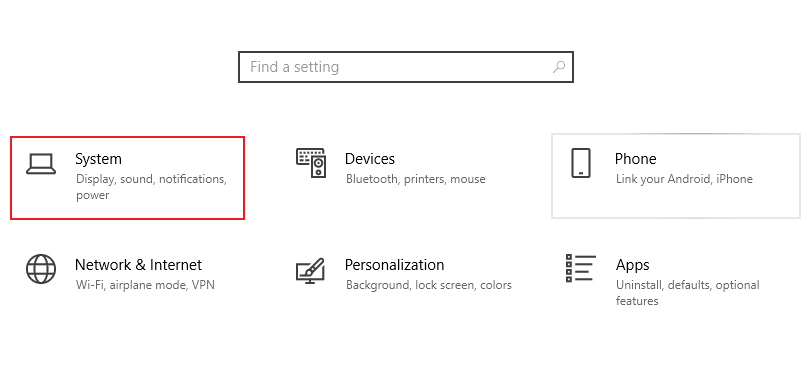
- Click "About."
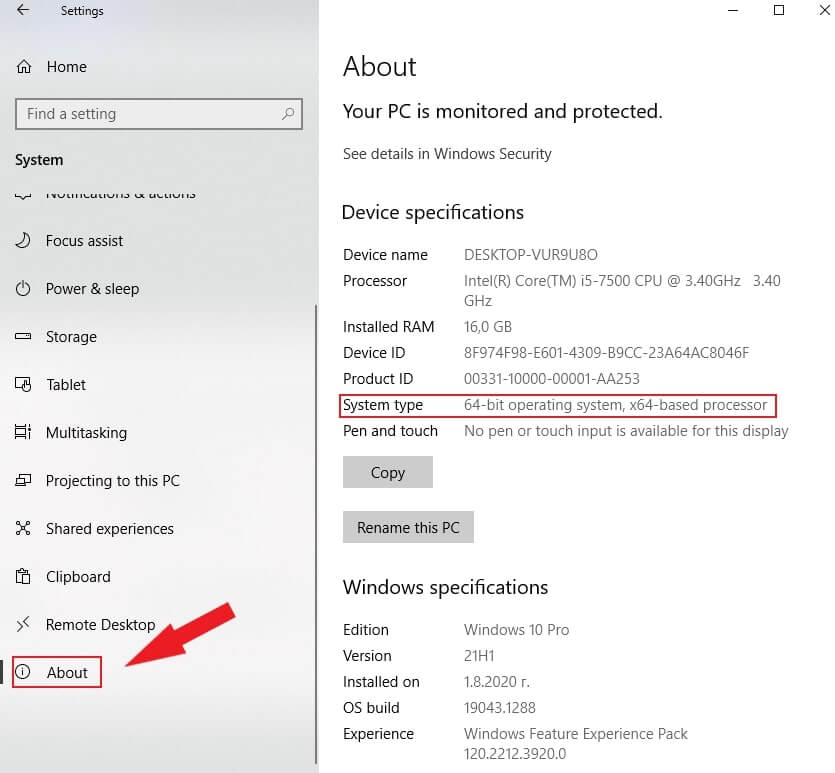
- Look under Device specifications on the right for your System type.
Wrapping up
Seeing "this app can't run on your PC" is never fun, but the methods above solve it in most situations. If none of them work, the underlying cause may be something more specific to your setup.

No Comments