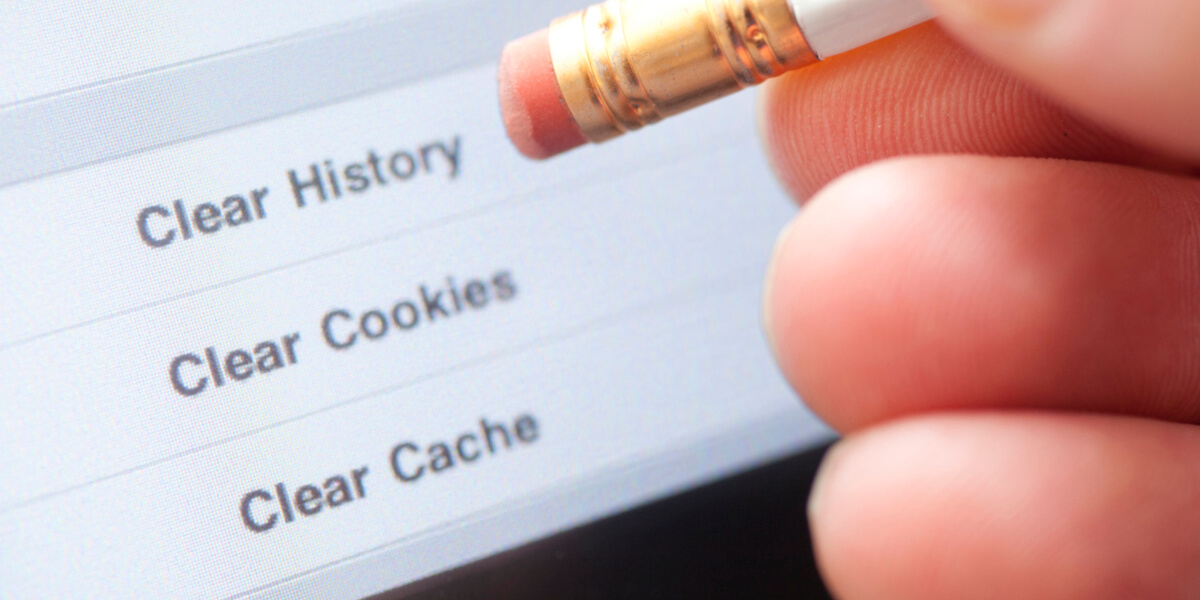
Cookies and browsing history both play a role in shaping your day-to-day web experience, and understanding what each one actually does is worth the effort. Clearing tracking cookies on a Windows 10 machine or an Android phone can help protect your privacy, reclaim a bit of storage, and even give your browser a small speed boost.
What exactly are browser tracking cookies?
Every time you browse, your browser quietly picks up a steady stream of cookies while also logging your history. Knowing what these little files actually do makes it easier to decide how to handle them.
A cookie — also known as an HTTP cookie, browser cookie, or web cookie — is a small file a site drops on your machine the first time you visit, used to recognize you on later visits and keep your experience consistent. It does this by holding on to details about you: your preferences, past actions, and settings. That includes things typed into form fields (your name, username, password, email, address, city, country), which pages you looked at, which links you clicked, and any preferences you set. This is also the mechanism that keeps you logged into an account across page loads. It's the same reason an online store remembers what's sitting in your cart, or why a site stays in dark mode without you having to flip that switch every visit.
Where cookies cause problems
Not every use of tracking cookies works in the visitor's favor, whether you're on a Windows 10 PC or an Android phone. Some cookie practices carry real privacy downsides.
When a page you're visiting embeds content pulled from somewhere else — an ad banner, for instance — that external element can drop its own third-party cookie to track you. Visit another site running ads from that same network, and another third-party cookie gets planted. Repeat across enough sites, and the ad network can piece together an individual profile of your browsing behavior, which then gets used to serve ads tailored specifically to you.
Here's a quick example: you search Google for black cars and click the top result — that generates a cookie. You then open a second result, generating another. From that pattern, an ad network can start showing car-related ads across nearly every site you browse, sometimes narrowed down further to used cars only, or ads from one specific manufacturer.
This kind of tracking isn't limited to search queries — the same logic applies to virtually anything you do online, building up a broader picture of your interests and habits over time. Some ad networks go a step further and sell that aggregated data outright to any buyer willing to pay for it.
The good news: there are ways to deal with all of this.
Clearing tracking cookies on Windows 10 and Android
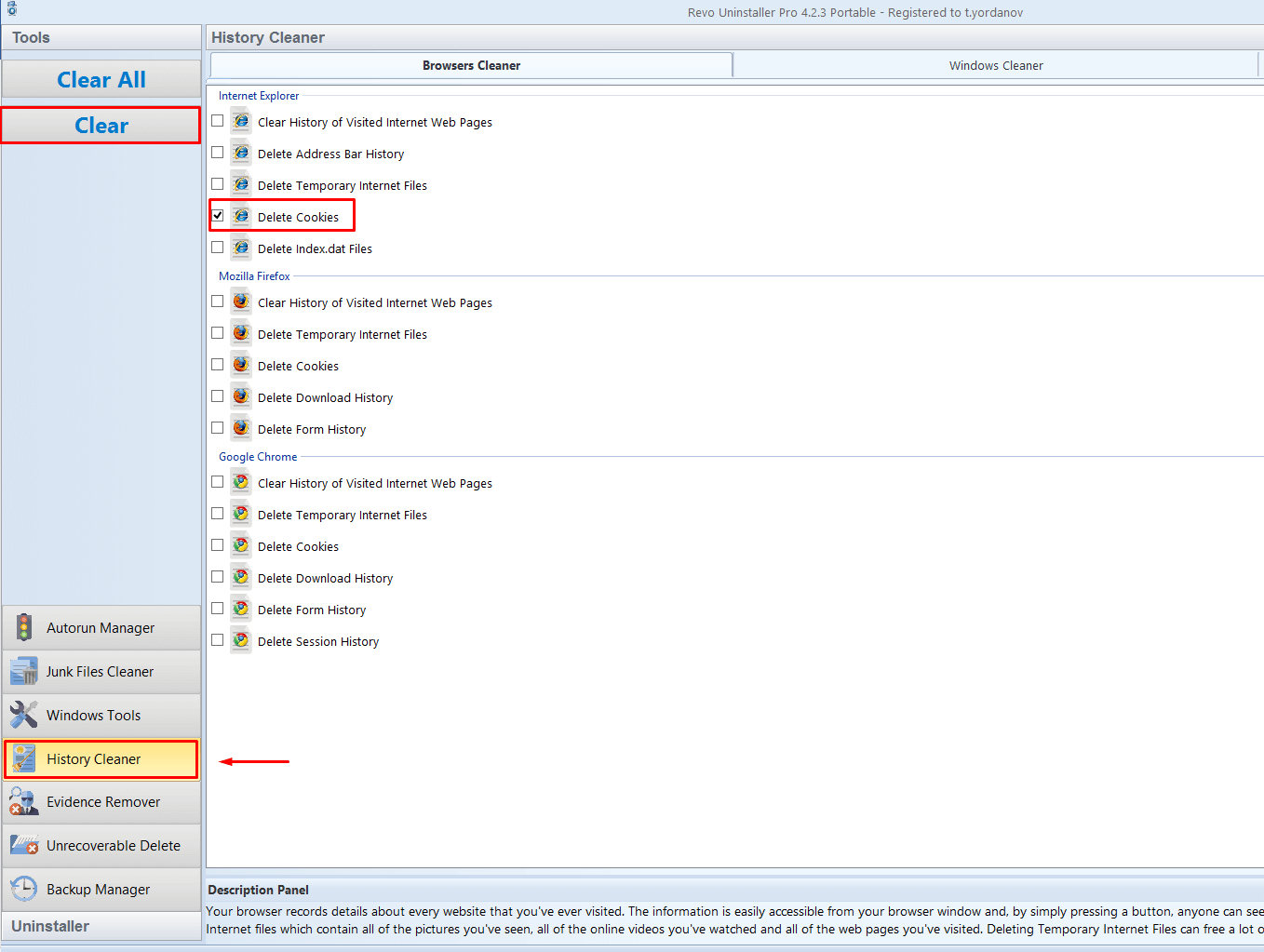
The quickest route is through Revo Uninstaller Pro's Browsers Cleaner feature, part of its broader History Cleaner tool.
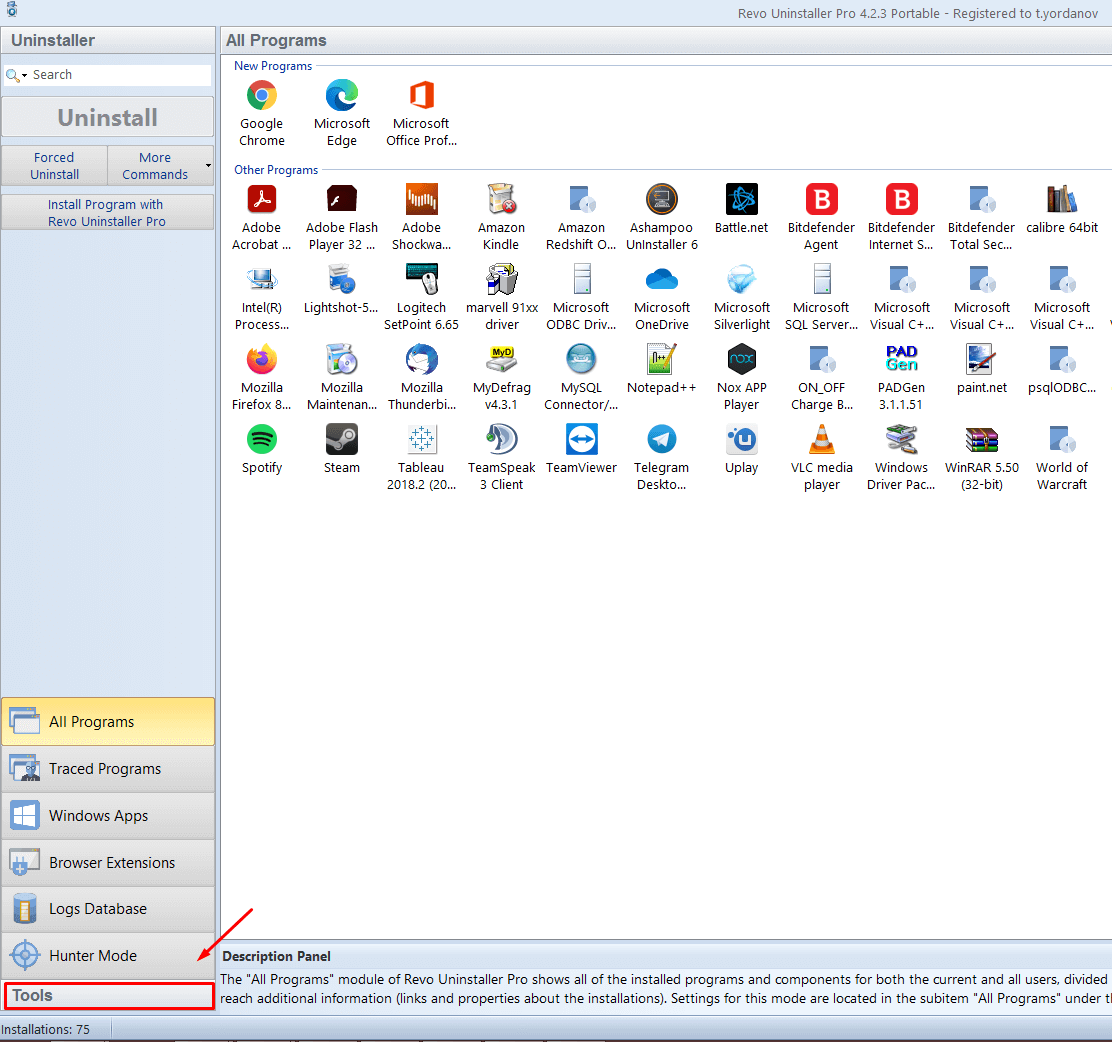
Here's how to open that tool:
- Launch Revo Uninstaller and go to the Tools section:
- Open History Cleaner, tick the “Delete Cookies” box, and click Clear.
Your browser also keeps a running log of every page you've ever opened, and it's not hidden away — anyone with access to your browser can pull it up in a couple of clicks.
The tool supports cookie removal across Google Chrome, Mozilla Firefox, Opera, Microsoft Internet Explorer, and Microsoft Edge.
The process itself is simple: tick “Delete Cookies” next to the browser you want cleaned, then hit “Clear.”
You can also skip third-party tools entirely and rely on the cookie-clearing option built into each browser, though it takes a bit longer to do them one by one.
Clearing cookies in Chrome on Windows or Mac
- Open Chrome.
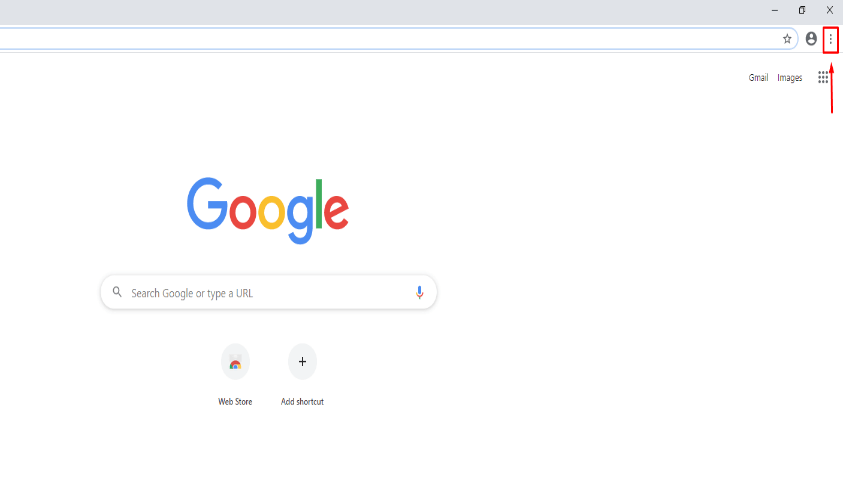
- Click the three-dot icon in the top-right corner and choose “Settings.”
- Go to More Tools, then “Clear browsing data.”
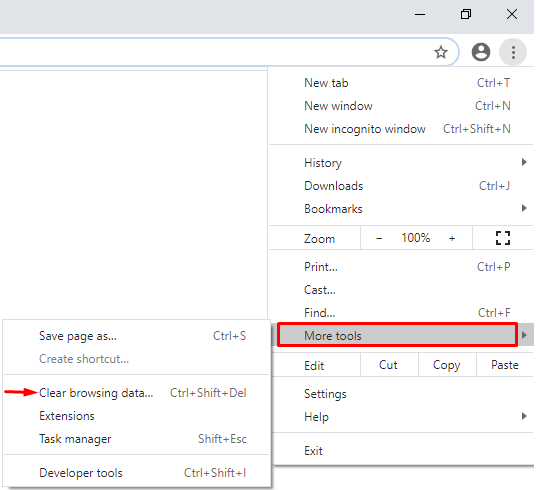
- Pick a time range from the dropdown, and leave only “Cookies and other site data” checked.
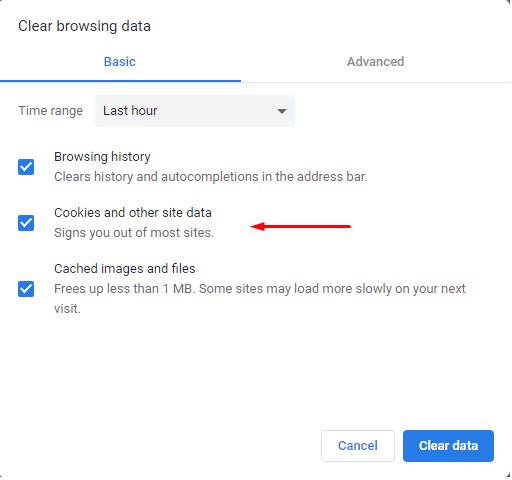
- Click “Clear data.”
Clearing cookies in Chrome on Android
- Open the Chrome app on your phone or tablet.
- Tap the three-dot icon in the top-right corner, then tap “Settings.”
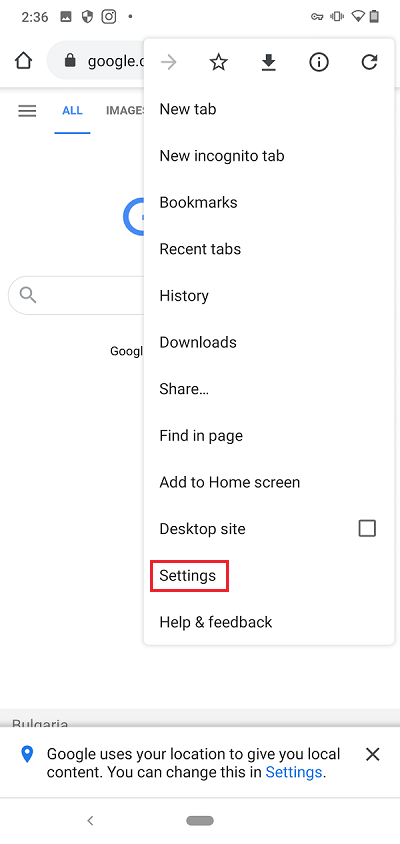
- Tap “Privacy,” then “Clear browsing data.”
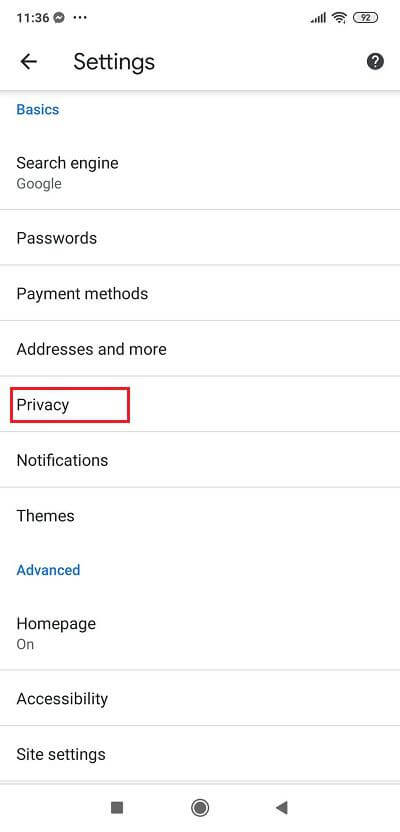
- Choose a time range, and keep only “Cookies and other site data” ticked.
- Tap the “Clear data” button.
Firefox: how to delete tracking cookies in Firefox on your Windows or Mac computer:
- Open Firefox.
- Click the three-line menu icon in the top-right corner, then click “Options.”
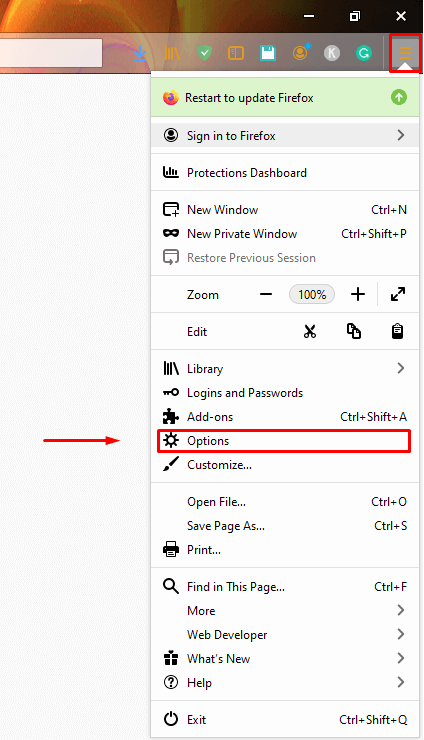
- Choose “Privacy and Security” from the left sidebar.
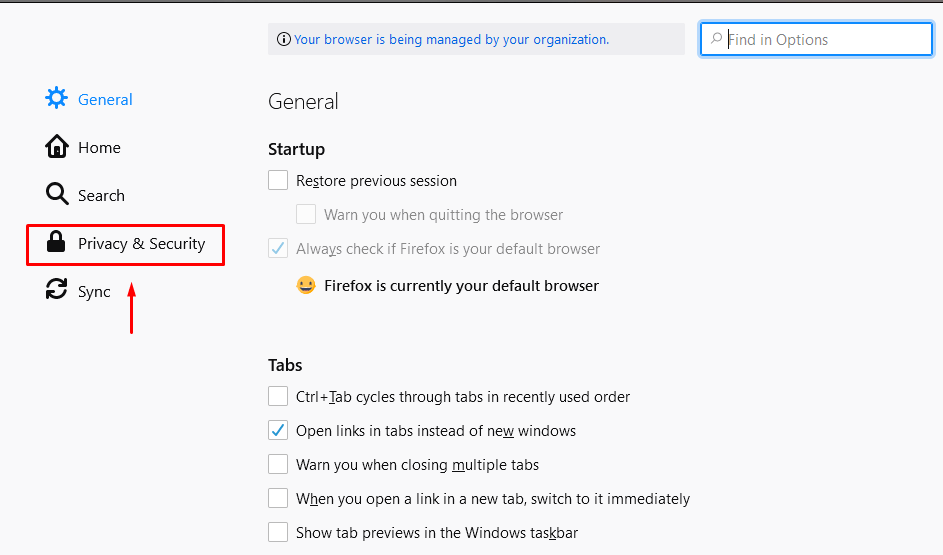
- Scroll down to “Cookies and Site Data” and click “Clear Data…”
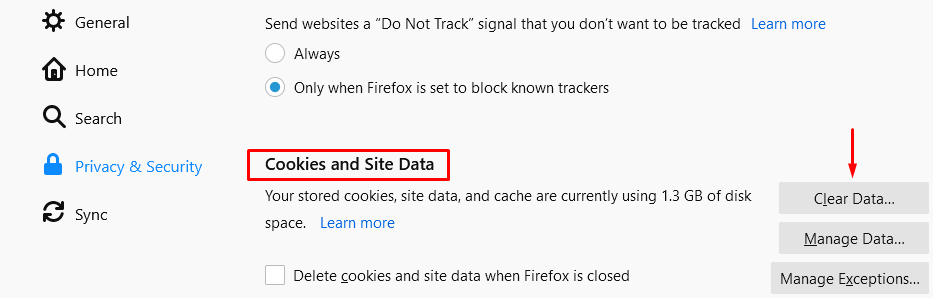
- Confirm that only “Cookies and Site Data” is checked.
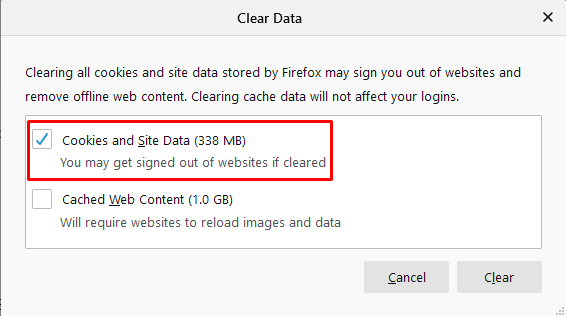
- Click the “Clear” button.
Firefox: how to delete cookies in Firefox on your Android device
- Open Firefox on your phone or tablet.
- Tap the three-dot icon at the bottom right, then tap “Settings.”
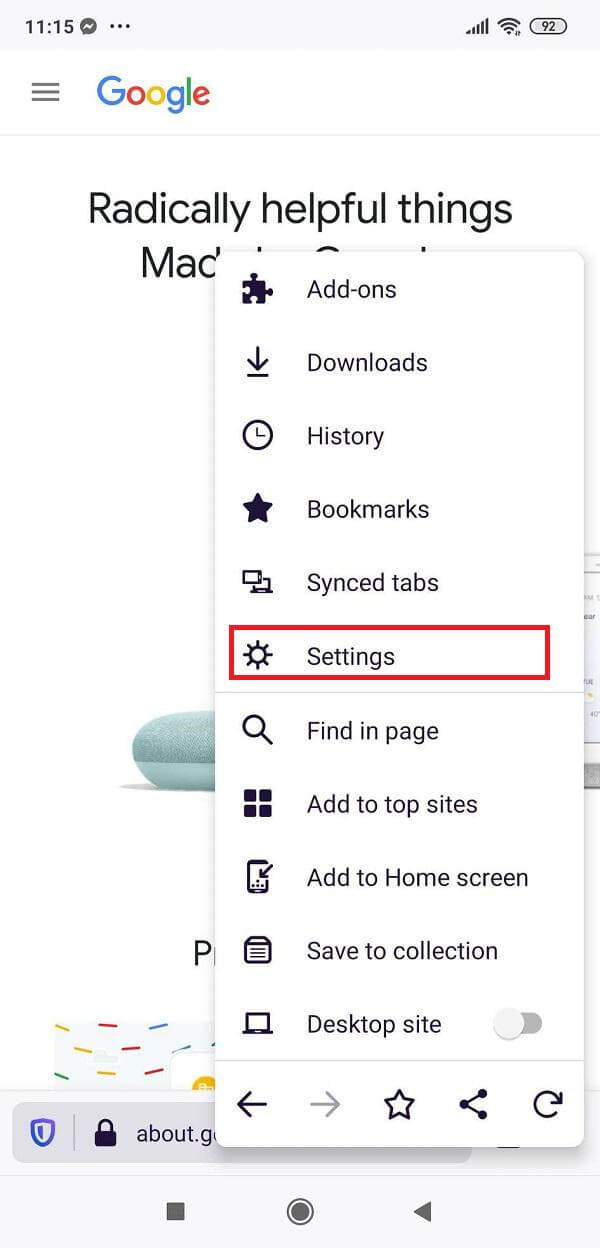
- Tap “Delete browsing data.”
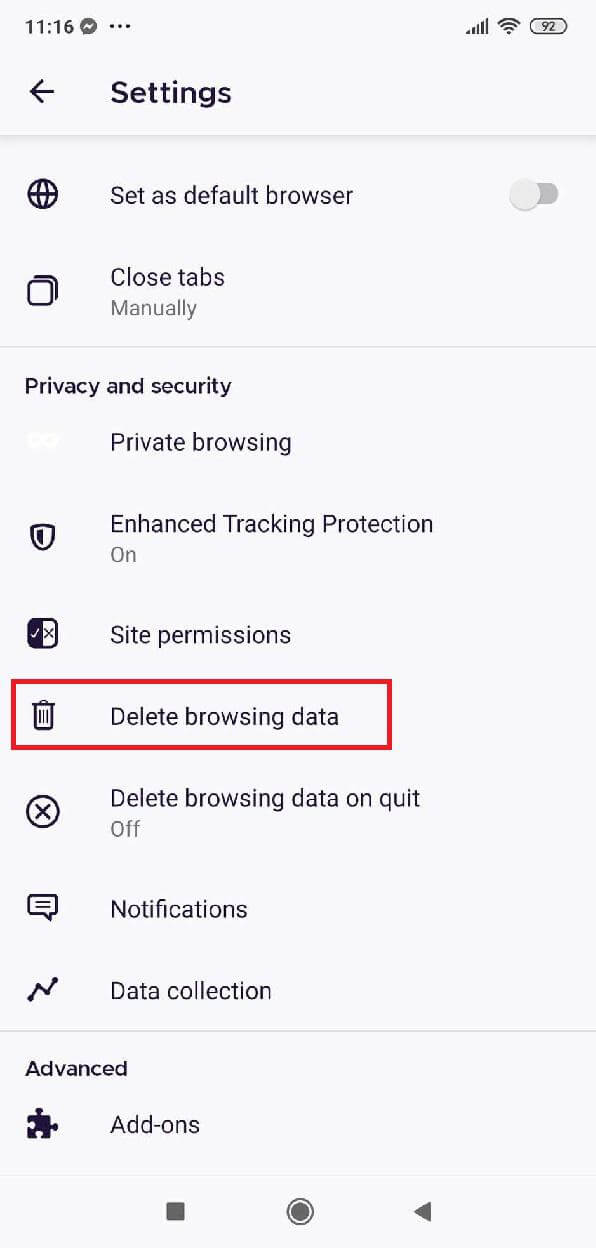
- Check only “Cookies” from the list.
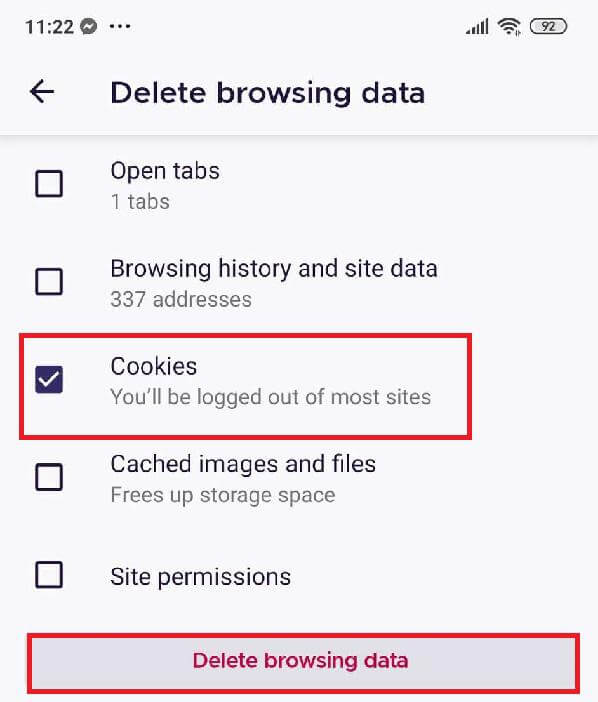
- Tap “Delete browsing data”.
Opera: how to delete cookies in Opera on your Windows or Mac computer
- Open Opera.
- Use the Ctrl + Shift + Delete shortcut, or click the Opera menu button in the top-left, hover over “History,” and select “Clear browsing data.”
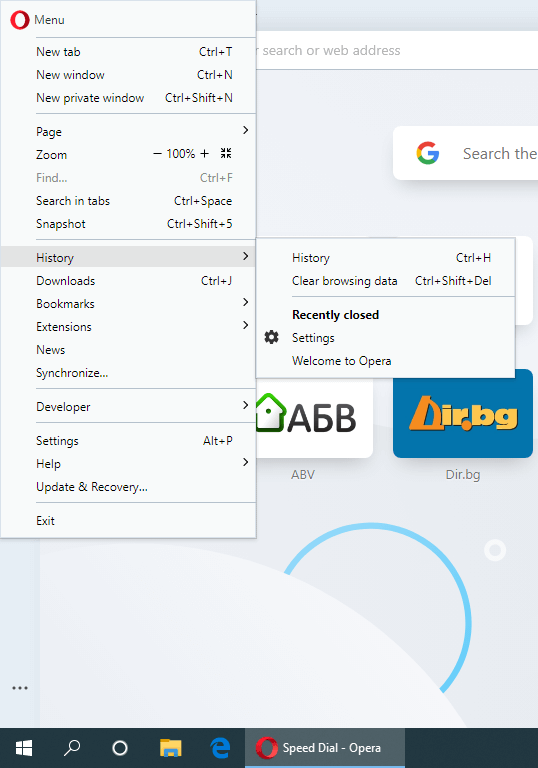
- Set the desired time range and leave only “Cookies and other site data” selected.
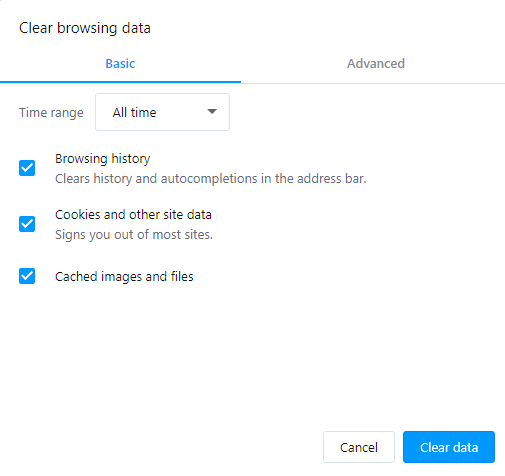
- Click the “Clear data” button.
Opera: how to delete cookies in Opera on your Android device
- Open the Opera app on your phone or tablet.
- Tap the Opera icon in the bottom-right corner, then tap “Settings.”


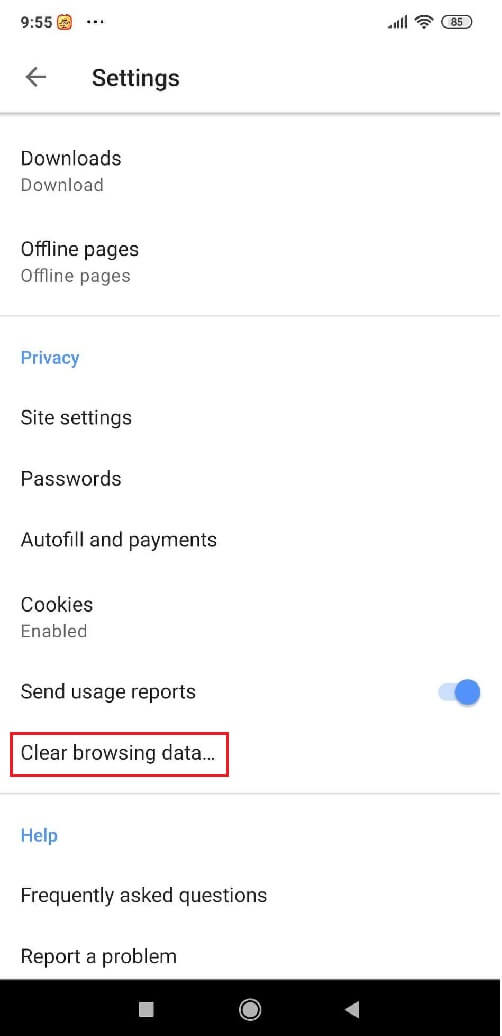
- Scroll down and tap “Clear browsing data…”
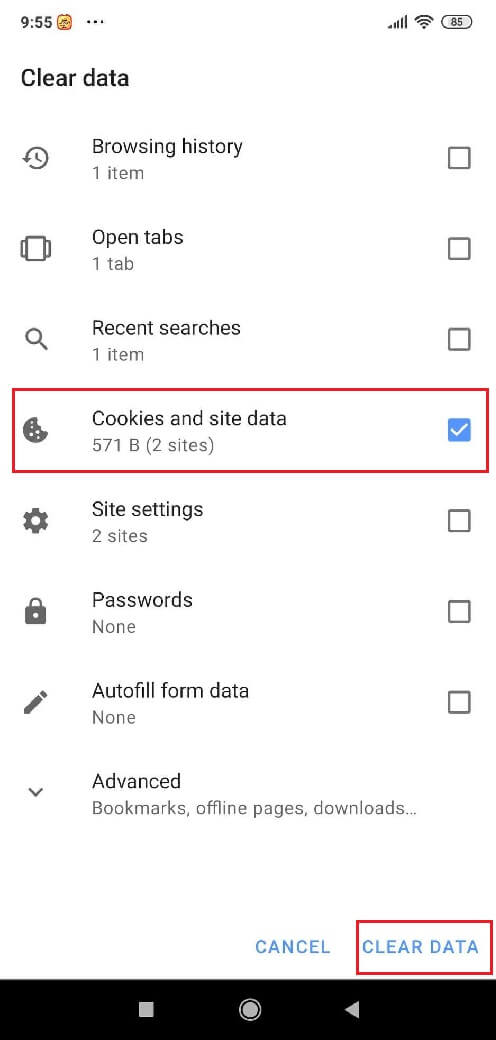
- Select only the “Cookies and site data” option.
How to delete cookies in Internet Explorer 11 on your Windows PC
- Open Internet Explorer.
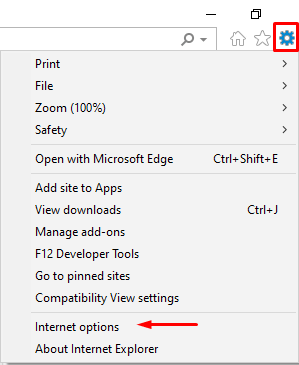
- Click the “Tools” icon in the top-right corner and select “Internet options.”

- Click “Delete…”
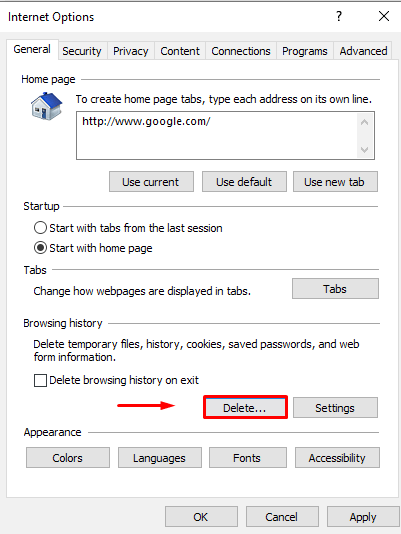
- Check only “Cookies and website data” in the list.
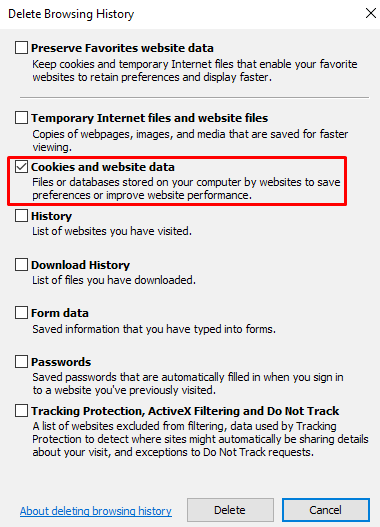
- Click the “Delete” button.
How to delete cookies in Microsoft Edge on your Windows PC
- Open Microsoft Edge.
- Use Ctrl + Shift + Delete, or click the three-dot menu in the top-right corner, hover over “History,” and click “Clear browsing data.”
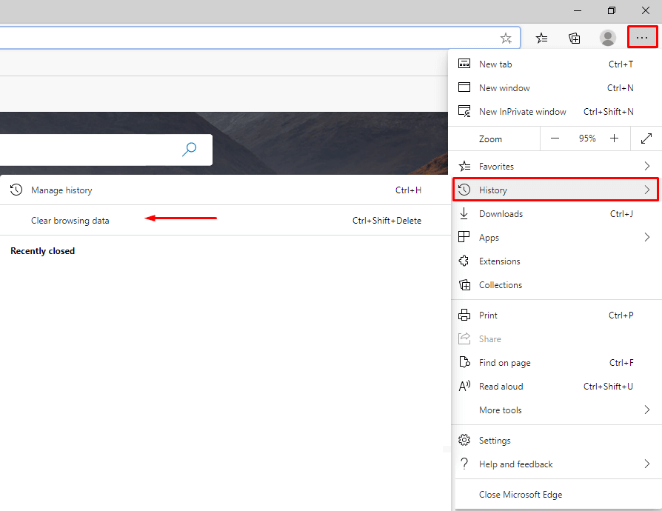

- Choose a time range and select only “Cookies and other site data.”
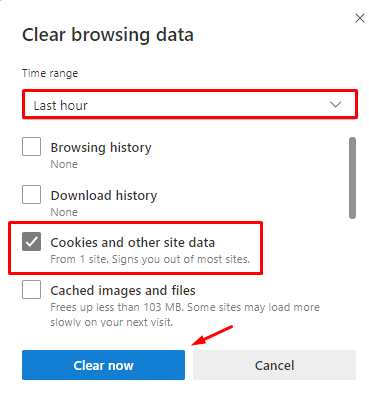
- Click the “Clear now” button.
Remove tracking cookies in Microsoft Edge on your Android device
- Open the Microsoft Edge app on your phone or tablet.
- Tap the three-dot icon at the bottom, then tap “Settings.”
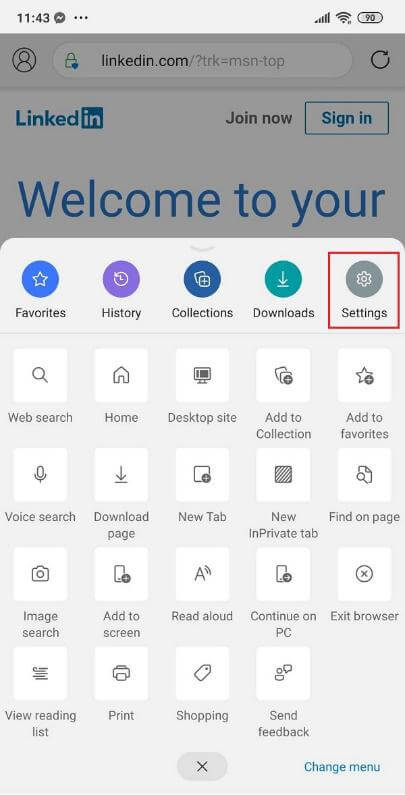

- Scroll down and tap “Privacy and Security.”
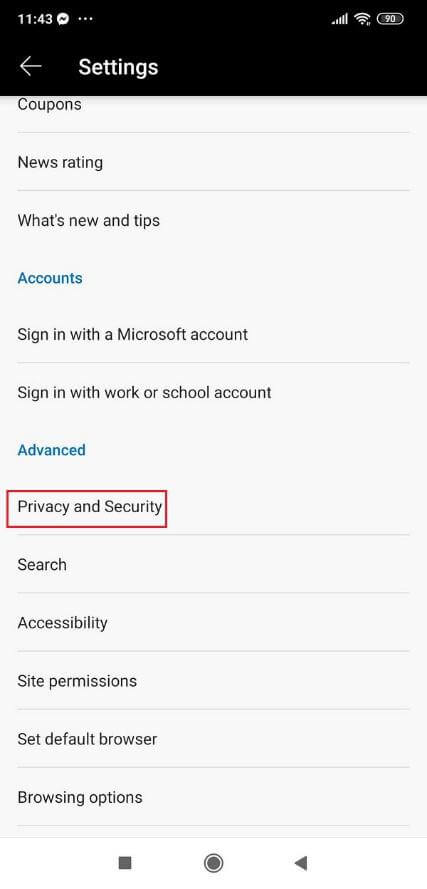

- Tap “Clear browsing data.”
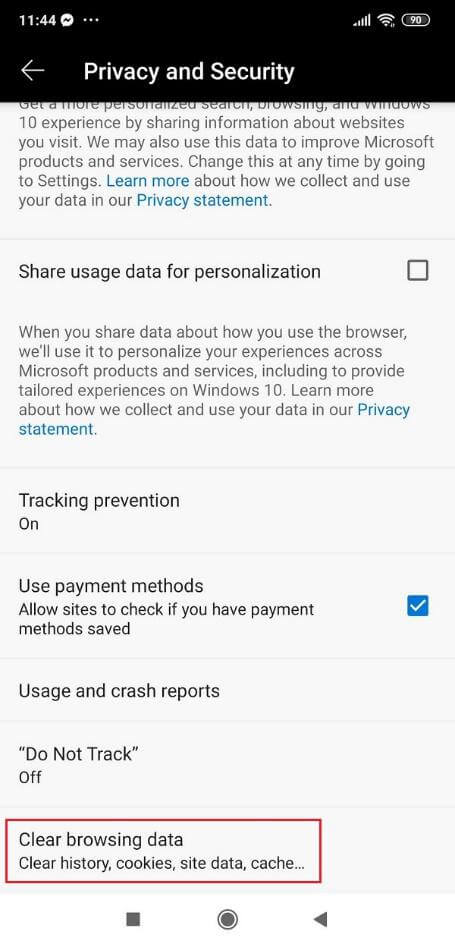

- Leave only the “Cookies and site data” option checked.
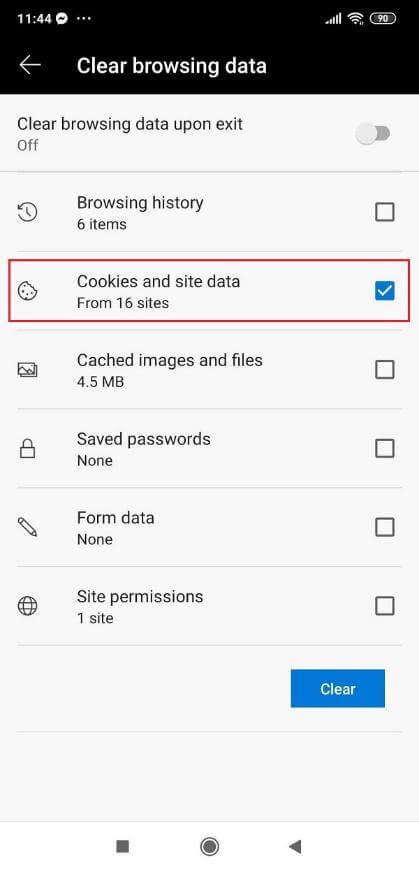

- Tap “Clear.”
So should you actually delete your cookies?
For the most part, cookies are harmless, and clearing them isn't something you need to do routinely.
Standard first-party cookies keep sites working properly and let them tailor the experience to you, so wiping them out isn't necessary and isn't really recommended.
Third-party tracking cookies get a worse reputation, though even deleting them won't fully stop you from being tracked online.
That said, a handful of situations make clearing cookies genuinely worthwhile.
Shared computers are one example — if you don't want others to see traces of what you've browsed, remember that cookies alone aren't enough; you'll also need to clear your browsing and search history.
Cookie clearing can also serve as a troubleshooting step when a site or two starts misbehaving. The cache is usually the more likely culprit, but if other fixes haven't worked, wiping cookies is still worth trying.
Clearing third-party cookies can also make it harder for some ad networks to recognize you. You'll still see ads afterward, just less personalized ones, which counts as a small win if privacy matters to you.
Whichever method you go with, Revo Uninstaller Pro or a browser's own settings, keep cookie clearing in your back pocket as a fix. If a page won't load right or your browsing feels off, wiping cookies is often enough to sort it out.

No Comments