
Almost everyone who has used a computer has, at some point, wanted a file gone for good — hitting Delete feels final enough. But does pressing that key actually erase the data, or does something get left behind that could still be recovered?
What actually happens when a file is deleted?
When you delete something into the Recycle Bin, the file isn't removed at all — it's just relocated to a special system folder, the Recycle Bin itself, which you can empty later. The setup mirrors a real trash can: it gives you a chance to pull items back out if you deleted them by mistake.
What's less obvious is that even after emptying the Recycle Bin, or bypassing it entirely with Shift+Delete, the file still isn't gone in the way most people assume.
So what does it take to erase a file for real?
Every volume on a hard drive keeps a structure called the Master File Table, essentially a catalog of every file and folder stored there. Creating a file adds an entry describing it, including where on the disk its data physically lives. Deleting a file simply removes that catalog entry.
Here's the catch
The file's actual contents remain on the disk, untouched. Windows just marks that space as available, so the drive can reuse it for new data whenever needed — at which point the old contents get overwritten.
Why is this the default behavior?
Skipping the step of scrubbing the file's contents and only erasing the table entry makes deletion nearly instant. For most everyday use this is fine, since ordinary files rarely need airtight security, and the freed space typically gets reused fairly quickly anyway.
But there's a downside
Because there's no telling exactly when or whether old data gets overwritten, "probably gone eventually" isn't good enough for sensitive material. Financial records, personal documents, or business files that fall into the wrong hands can lead to real harm, so some users genuinely need a way to erase data with certainty.
Thankfully, several approaches and tools exist for wiping data beyond recovery. Here's a rundown.
Ways to delete a file on Windows 11
- Right-click deletionThe simplest route:
- Right-click the file or folder you want gone
- Choose "Delete" from the menu
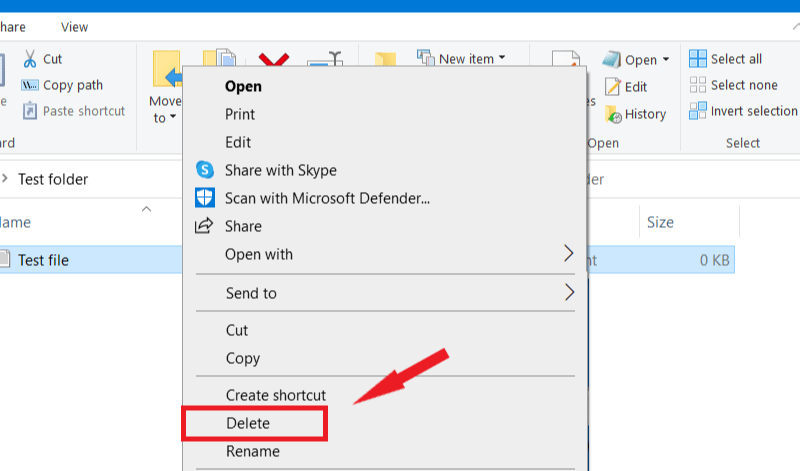
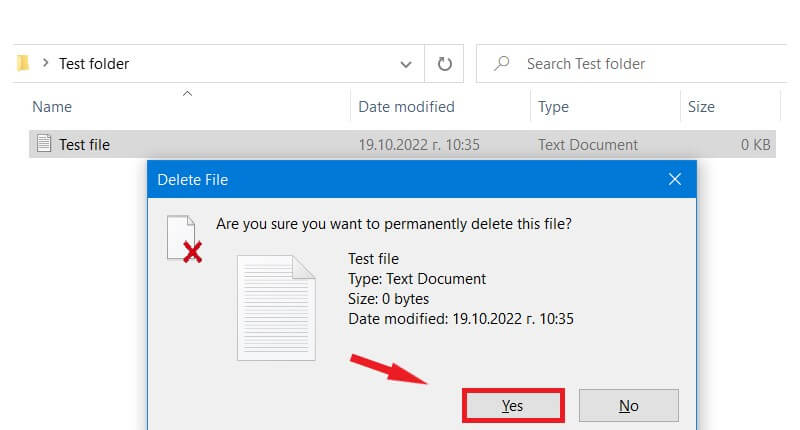
- Keyboard shortcutThis skips the Recycle Bin, but the file can still be recovered with the right recovery software unless you follow up with a dedicated wiping tool, covered further below. Steps:
- Select the file or folder to remove.
- Press and hold "Shift," then press "Delete."
- Confirm by clicking "Yes" in the prompt.
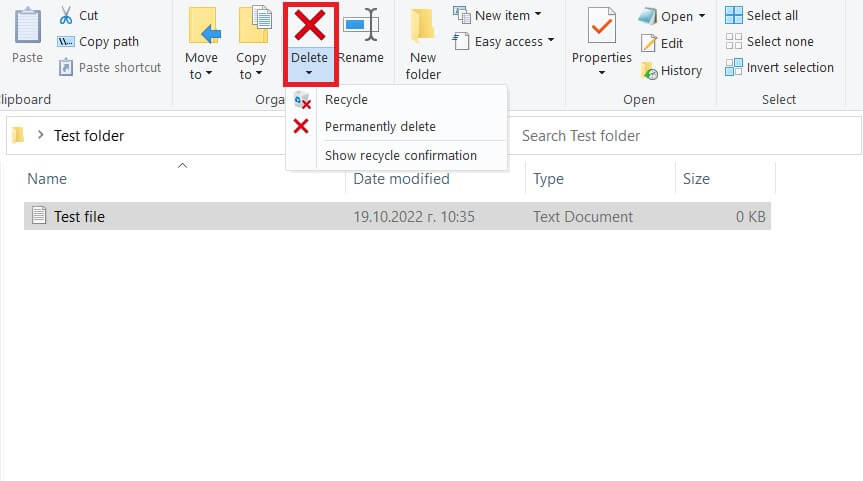
- File Explorer's ribbonYou can also remove files straight from File Explorer's toolbar:
- Open File Explorer with Win Key + E.
- Browse to the item you want removed and click it once to select it.
- Click Delete on the ribbon for a normal Recycle Bin deletion, or open the dropdown arrow next to it and pick Permanently delete to skip the Recycle Bin altogether.
- PowerShell or Command PromptFor those comfortable with the command line:
- Type "
powershell" into the Start menu search box. - Open the PowerShell app.
- Run
Remove-Item -path c:\[Filename] -recurseand hit Enter. This removes the target folder along with everything it contains.
- Type "
Truly wiping files beyond recovery on Windows 11
Revo Uninstaller includes an Unrecoverable Delete feature that overwrites data using multiple secure patterns. It takes longer than an ordinary delete, but the result can't be reconstructed, even with high-end recovery tools.
Here's a look at the Unrecoverable Delete tool:
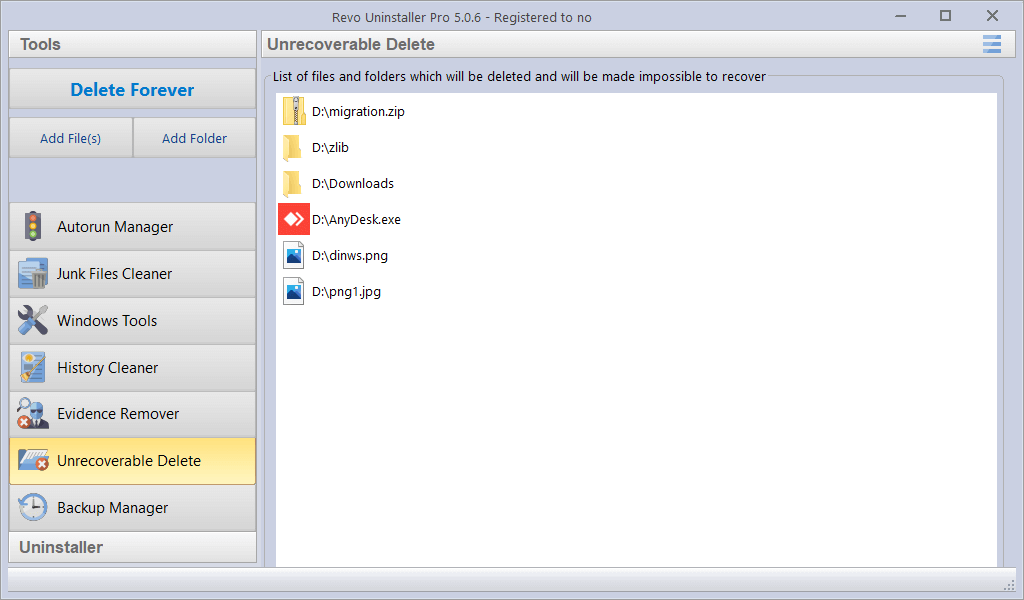
Use the Add File(s) button to pick individual items — hold Ctrl while clicking to select several at once.
To wipe an entire folder in one go, use the Add Folder button instead.
Once everything you want gone is listed, click Delete Forever. A progress bar tracks the wipe with an estimated time remaining, and you can pause, resume, or cancel the job as needed.
Keep in mind that canceling midway won't bring back files that were already wiped, so review your selection carefully before starting.
Wrapping up
Once you understand what's really happening behind a simple delete, it's easier to decide when extra precautions are worth taking for sensitive files. Revo Uninstaller's Unrecoverable Delete gives you a straightforward way to erase unwanted files for good.

1 Comment
I love this feature when it works in Windows 11. With a standard user account, I used to be able in Win10 to use the RevoUninstall context right click option to to permanently delete file. Now in Windows 11, the context menu option does not display even that that feature option box is checked. So if you are in a standard user account, you must open RevoUn and drag the files to be deleted into the RevoUnin window. Not really convenient as before.