Picture this: you install an app, use it for a while, and then decide it has to go. You open Apps and Features in Windows 10, or try a third-party uninstaller, only to find the software refuses to come off your machine. This guide covers the ways to force an uninstall when the normal route fails.
First, a quick look under the hood
It helps to know what actually happens when a program is installed in the first place.
Several things happen behind the scenes during setup, and understanding them explains why uninstalls sometimes fail:
- Program files usually land inside a dedicated folder under Program Files.
- Shared components, such as .dll libraries, often go into a Common Files subfolder inside Program Files.
- Drivers get copied into
WINDOWS\SYSTEM32andWINDOWS\SYSTEM32\drivers. - More files land in the hidden
C:\Users\User\AppData\orC:\ProgramData\folders, which Windows keeps out of sight by default. - The installer also writes entries into the Windows Registry, the database that stores settings for the OS and every application that relies on it. It might register a shared library or associate certain file types with the new program — install Microsoft Word, for example, and Word documents suddenly open with it.
What happens next
- The installer also adds an entry to the Registry, which is exactly where the Apps and Features tool looks to build its list of installed programs.
- Every step of the installation gets recorded in a log file, which is stored in the program's folder alongside its uninstaller. When you click Uninstall, Windows looks up the registered uninstaller and runs it, and the uninstaller reads that log to undo everything — deleting copied files, removing Registry keys, and so on.
- If that log file is missing, or the Registry record is incomplete, the uninstaller is likely to fail, and you will need another way to remove the software.
In short, most programs come with an uninstaller created during setup, and that file is normally all you need to remove them. When that file never gets created, the built-in Add/Remove tool has nothing to run, and you will likely need a third-party uninstaller such as Revo Uninstaller Pro, developed by VS Revo Group.
So how do you force an uninstall?
Most people already know the standard removal steps:
- Open the Start menu.
- Search for "add or remove programs."
- Open the "Add or remove programs" result.
- Find the program in the list and select it.
- Click Uninstall.
- Follow the on-screen prompts to finish.
We cover this process in more detail in a separate article on this site.
Sometimes Windows simply can't remove a third-party program
When that happens, it is easy to be left unsure what to try next.
Fortunately there are several reliable ways to force a stubborn program off a Windows 10 machine.
Here is what you can try.
Ways to remove a program that refuses to uninstall
- Force the removal with Revo Uninstaller Pro
- Run the software's own uninstall tool
- Uninstall the program while in Safe Mode
- Remove the program manually via the Registry Editor
Option 1: Force uninstall with Revo Uninstaller Pro
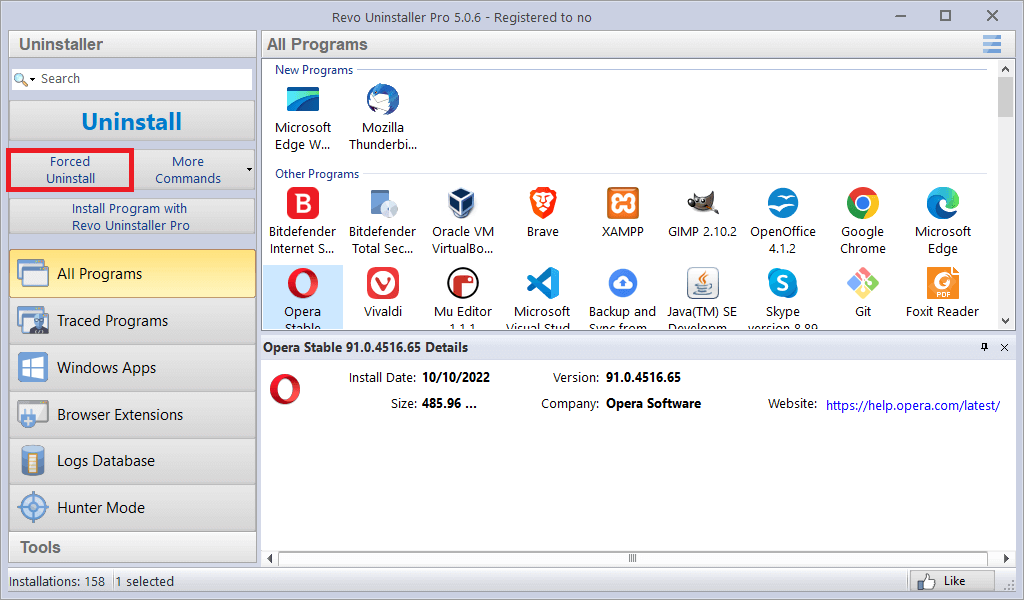
A third-party uninstaller is generally the safest route for removing software that will not go quietly, without putting the rest of your system at risk. Revo Uninstaller Pro, made by VS Revo Group, includes a Forced Uninstall feature aimed specifically at programs that are still present on the machine but no longer show up in the installed-apps list. You can read more about using this feature in this article.
Forced Uninstall also comes in handy when a removal gets stuck partway through, or when a broken install is blocking a reinstall attempt — running it can clear the way in either case.
Option 2: Use the software's own uninstall tool
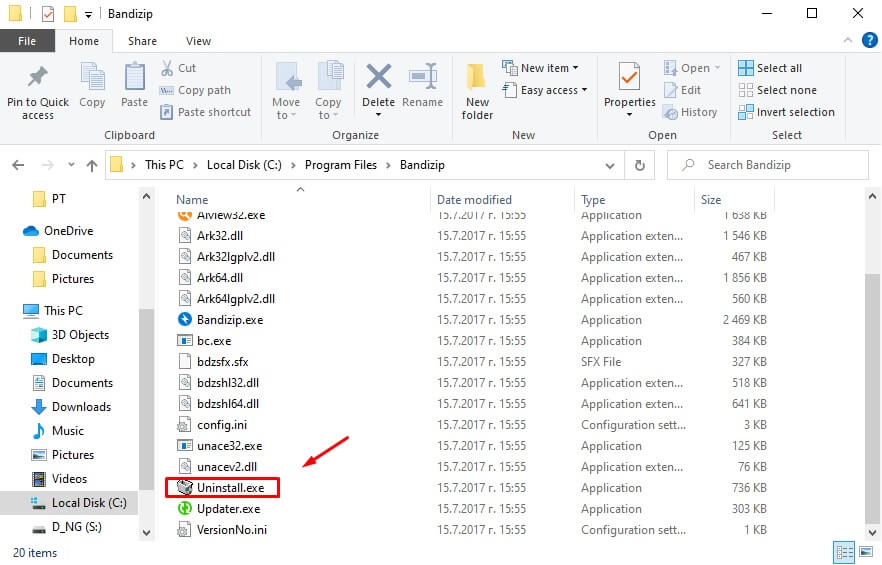
Most software ships with its own dedicated uninstaller sitting right in the program's installation folder. Running it launches a removal wizard built specifically for that application. Here is how to find and use it:
- Browse to the program's install folder, typically
X:\Program Files\(app name)orX:\Program Files (x86)\(app name). - Look through the folder for a file named uninstaller.exe or uninstall.exe.
- Double-click it to launch the removal wizard.
- Follow the prompts until the uninstall finishes.
Option 3: Uninstall the program from Safe Mode
Other running software can sometimes interfere with an uninstall on Windows 10. Booting into Safe Mode strips that interference away, since only core Windows services and apps run in that mode, which can be enough to let a stubborn uninstall finish. Here is how to boot into it:
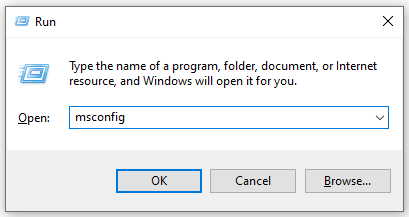
- Press Windows key + R to open the Run dialog.
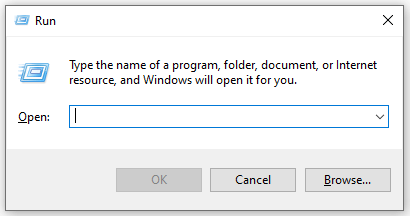
- Type
msconfigand press OK to open System Configuration.
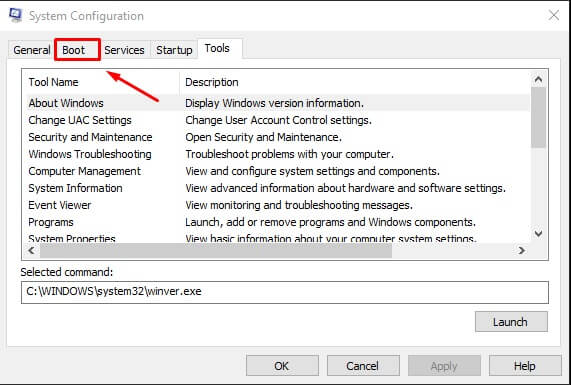
- Switch to the Boot tab.
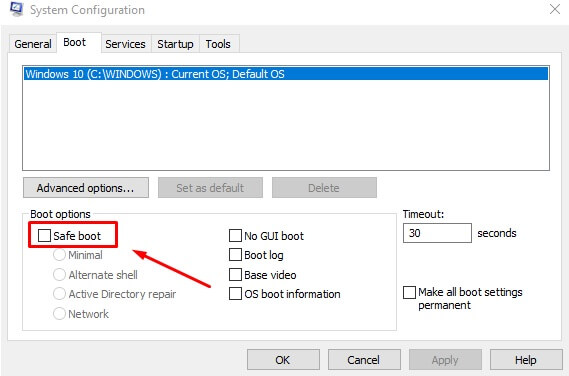
- Check the "Safe boot" option under Boot options.
- Click Apply, then OK.
- Click Restart in the confirmation dialog to reboot your PC.
Your PC will come back up in Safe Mode. From there you can try the other removal methods in this article against the program that would not uninstall.
Option 4: Remove the program through the Registry Editor
Installing software also writes data about it into the Registry, and clearing every trace from there effectively counts as an uninstall. If the standard methods have not worked, editing the Registry directly is another option. Here is the process:
Part 1: Delete the Registry entry
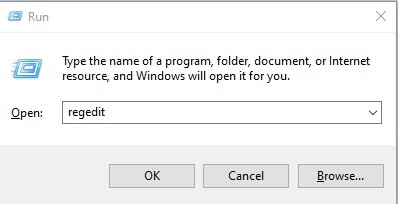
- Press Windows key + R to open the Run dialog.
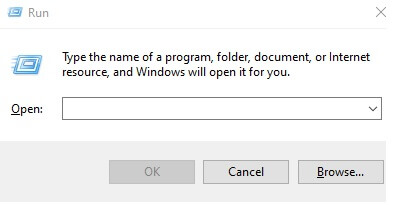
- Type
regeditand press Enter to open the Registry Editor.
- In the left pane, browse to HKEY_LOCAL_MACHINE > SOFTWARE > Microsoft > Windows > CurrentVersion > Uninstall.
- Under the Uninstall key, find the sub-key that matches the program you want to remove.
- Right-click that sub-key and choose Delete.
- Click Yes to confirm.
- Close the Registry Editor and restart your PC.
Part 2: Clean up leftover files
Next, track down any remaining files the program left behind on disk.
- Press Windows key + E to open File Explorer.
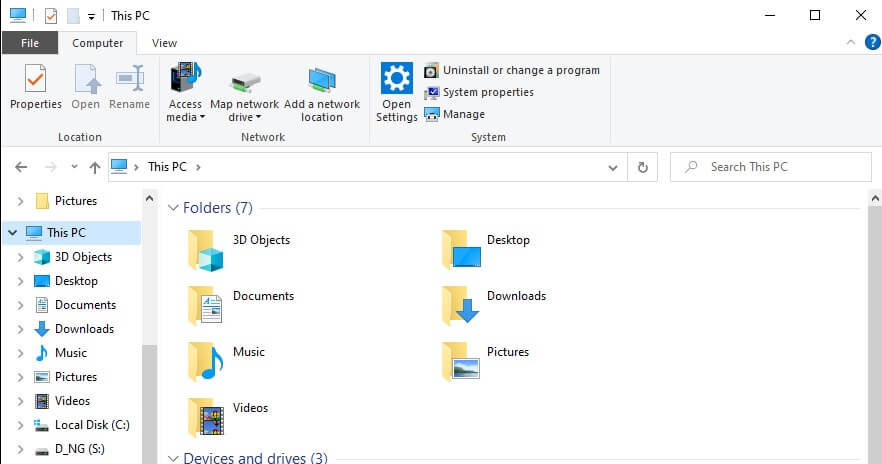
- Turn on visibility for hidden folders such as
C:\Users\User\AppData\andC:\ProgramData\, where leftover files often end up — see our guide on showing hidden folders if you need help. - Search for the program's name (or its developer's name, or the package name) using File Explorer's search bar.
- Delete only the files and folders that clearly belong to the program you are removing.
Be careful with which Registry keys you delete during this process — removing the wrong one as an inexperienced user can destabilize your system. That risk is exactly why a third-party tool such as Revo Uninstaller Pro is worth considering, since it walks you through cleanup more safely.
As this article shows, a stuck program can be removed several ways — manually through Safe Mode or the Registry Editor, or with the help of a dedicated tool. If you are not comfortable digging through the Registry yourself, a third-party uninstaller such as Revo Uninstaller Pro remains the safer path to a clean removal.

10 Comments
fluent explanation, and turned out to be a good help
The Windows/Registry method worked, removed the program 🙂
Thanks
this is reeally well made and it helped alot in removing programs i accidentally deleted the uninstaller for 5/5
Dear REVO Uninstallers just want to say thanks for your explanation on removing unwanted programs. your article was very informative. thank you
THIS HELPED SO MUCH THANKS
HKEY has always worked when “add/remove” won’t. this time all the above suggestions didn’t work. emptying recycle bin didn’t some remnants were still in %temp% folder. still i’d get this message “action can’t be completed because the file is open…” i went to Task Manager found the description in Processes verified in Services, stopped it, then went and deleted the whole file. Finally Gone, the culprit was Epson Event Manager from a stupid printer.
REVO Uninstaller. Thanks for the useful article as well as your software. It worked very well.
Right-click the uninstaller and select “Run as Administrator.” This grants elevated permissions that might be required.
“program that wont uninstall”…You mean how to uninstall a Adobe product?
I installed an Game installer on my pc not knowing that a game would only be played on the installer. Upon knowing, I immediately deleted the game and left the installer. I panicked at first because the program did not uninstall after following the ‘add or remove program’ instruction. So I moved to Method II so I would not risk installing another program. I was glad that it was successful upon following these instructions. Thank you so much!