
Most Windows users run into this at some point: you’re in the middle of something and an app suddenly freezes or stops responding.
It’s annoying, and if you don’t know the right fix, it can eat up a surprising amount of time. Fortunately, there are several dependable ways to shut down a stuck program and get back to work.
This guide walks through the main methods for force quitting an app on a Windows 11 PC.
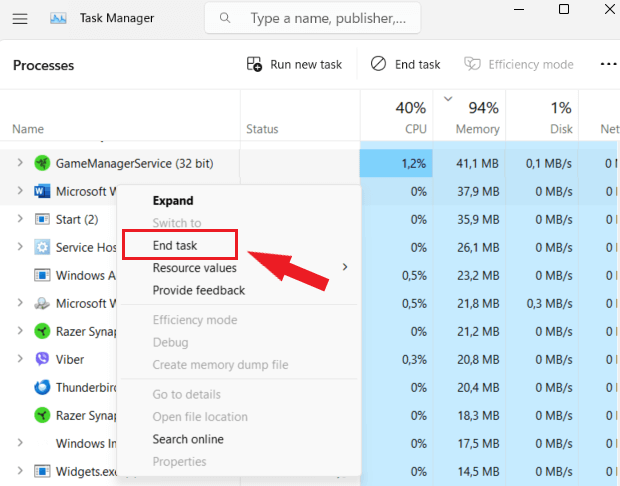
Method 1: Force quit with Task Manager
- Press ‘Ctrl + Shift + Esc’ at the same time to open Task Manager.
- Select the app that’s giving you trouble.
- Click ‘End task’.

Method 2: Force quit from the Settings app
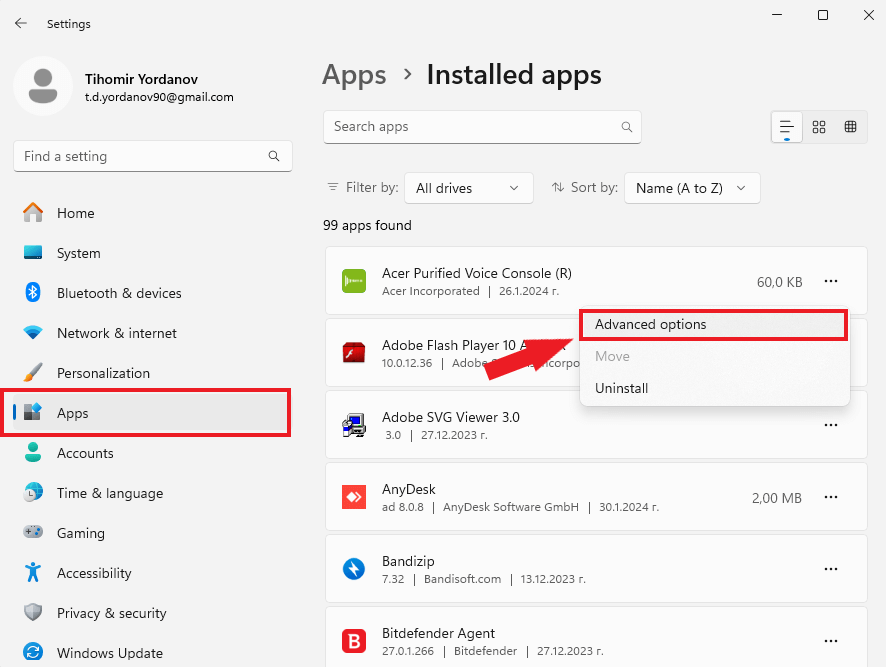
- Click the ‘Windows’ icon on the taskbar, then open ‘Settings’.
- Inside Settings, select ‘Apps’.
- Scroll to find the app that’s frozen and click its name.
- On the app’s details page, look for and select ‘Advanced options’.
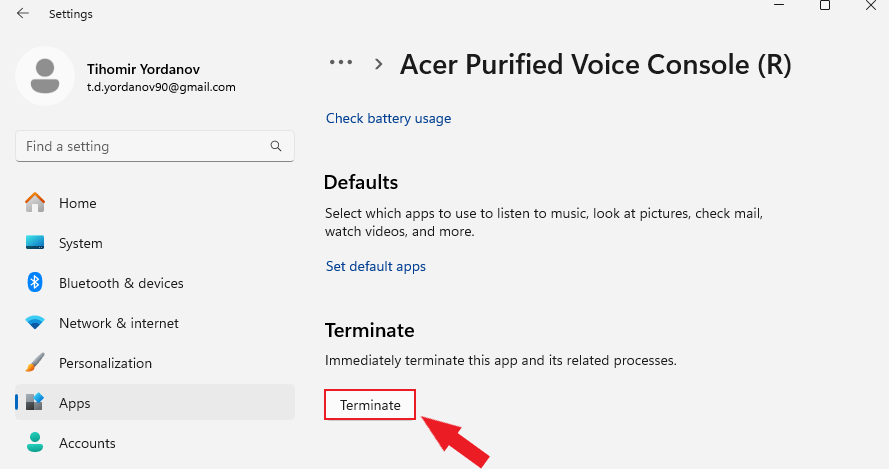
- Select ‘Terminate’ to shut down the app along with all of its running processes.


Method 3: Force quit an application from Command Prompt
- Press ‘Windows + R’ to bring up the Run dialog.
- Type ‘cmd’ and press ‘Enter’ to launch Command Prompt.
- In the window that opens, type ‘tasklist’ and press ‘Enter’ to see every running process.
- Find the name or process ID (PID) of the app you want to shut down.
- Type ‘taskkill /f /im insertprogram.exe’ (swap “insertprogram.exe” for the actual program name or PID) and press ‘Enter’ to force it closed.
Method 4: A fast keyboard shortcut for force quitting
- Click the unresponsive window so it’s the active one.
- Hold down the ‘Alt’ key.
- While still holding ‘Alt’, press ‘F4’.
- Let go of both keys.
If none of these steps work, restarting the PC is a dependable fallback. Press and hold the power button until the screen turns off, then press it again to restart. The frozen app will be gone once Windows starts back up.
If freezes keep happening even after a restart, check for pending operating system updates — staying current helps with both stability and security.

No Comments