Getting into the BIOS unlocks a range of low-level hardware settings, everything from adjusting the system clock to tweaking CPU behavior. In short, once you're inside the BIOS (Basic Input Output System), you have full control.
Worth noting: modern PCs have largely swapped BIOS for UEFI (Unified Extensible Firmware Interface). UEFI is essentially BIOS's successor — quicker to boot, able to handle much larger storage drives, and generally more capable. It supports both 32-bit and 64-bit modes (BIOS was stuck at 16-bit), can address drives up to roughly 9 zettabytes, and includes security features like Secure Boot.
People still use "BIOS" and "UEFI" interchangeably, even though they're technically different things, as noted above. So on a Windows 10 or Windows 11 machine, what you're really opening is the UEFI settings screen.
How to get into BIOS on a Windows 10 or Windows 11 PC
- Through Windows Settings
- Using Shift + Restart
- Via Command Prompt
- Using the Run dialog
- With a desktop shortcut
I. Through Windows Settings
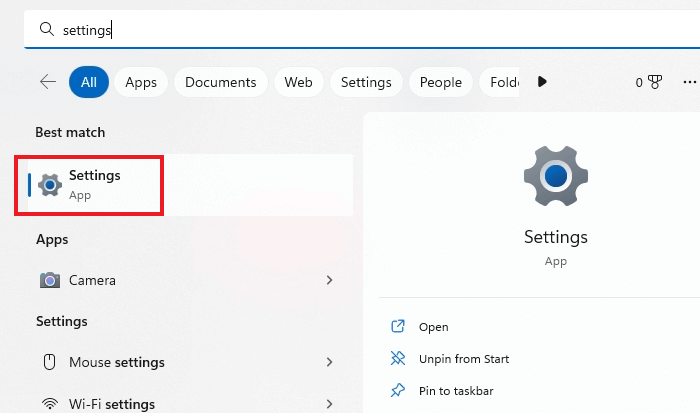
- Open the Start Menu, type "settings" in the search box, and click the gear icon.
- Click "System" on the left side.
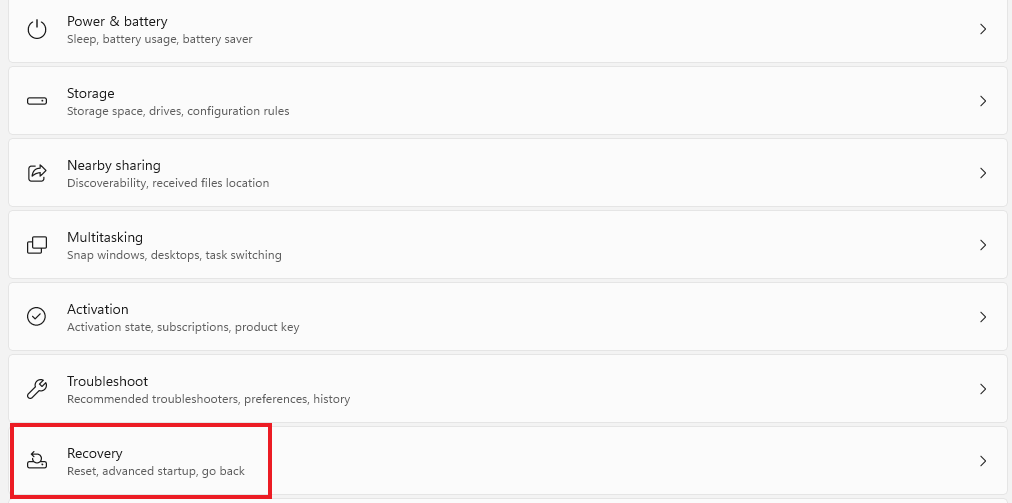
- Select "Recovery" on the right.
- Under Advanced Startup, click "Restart Now."
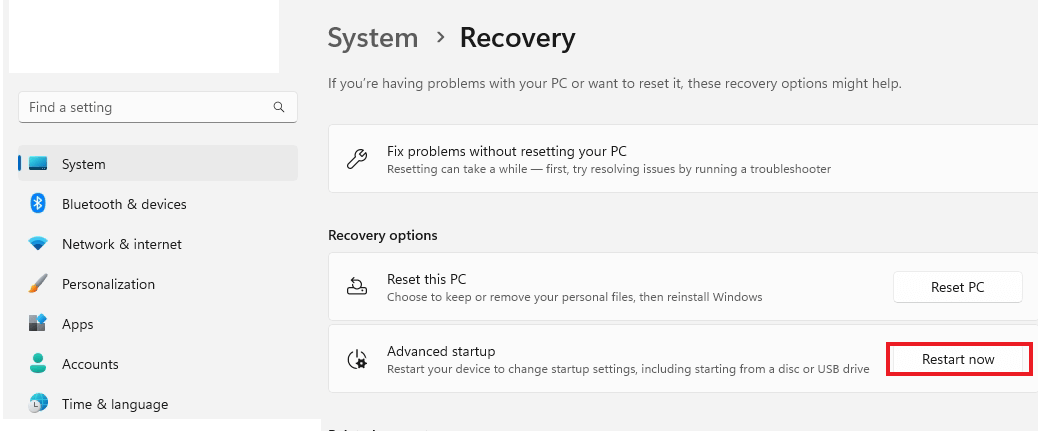
- Save any open work, then confirm by clicking "Restart now" again.
- When the menu appears, pick "Troubleshoot."
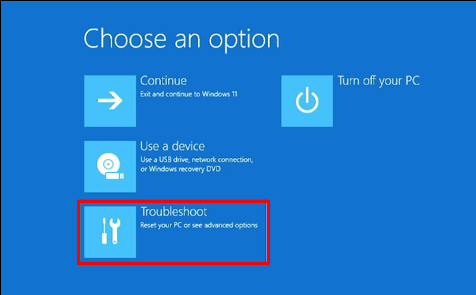
- Click "Advanced options."
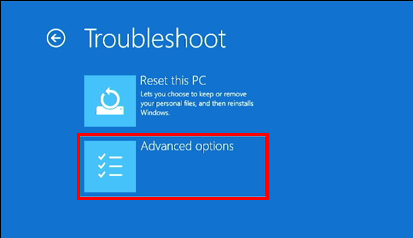
- Choose "UEFI Firmware Settings," then click "Restart."
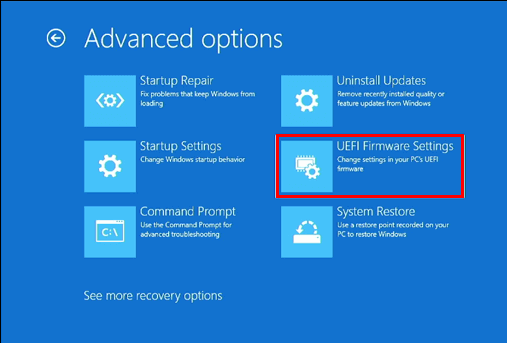
After the restart, your PC will boot straight into the firmware setup screen.
II. Using Shift + Restart
- From the sign-in or lock screen, hold Shift while clicking the power button, then choose Restart.
- Windows will restart into the Advanced startup screen.
- From there, follow the same path as above: Troubleshoot > Advanced options > UEFI Firmware Settings, then click Restart.
III. Via Command Prompt
- Open Command Prompt (PowerShell or Terminal also work fine here)
- Type
shutdown /r /o /f /t 00orshutdown /r /oand press Enter.
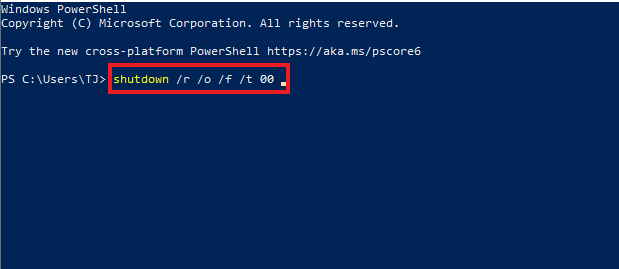
- Once it restarts, go through Troubleshoot > Advanced options > UEFI Firmware Settings and click Restart to land in the BIOS.
IV. Using the Run dialog
- Open the Start Menu and type "Run" in the search bar
- In the Run box, type
shutdown /r /o /f /t 00orshutdown /r /o, and press Enter
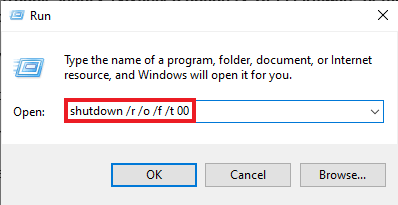
- Then follow Troubleshoot > Advanced options > UEFI Firmware Settings > Restart to reach the BIOS.
V. With a desktop shortcut
You can also set up a one-click shortcut for jumping straight into UEFI/BIOS.
- Right-click your desktop and pick New > Shortcut.
- When prompted for the location, type
shutdown /r /o /f /t 00orshutdown /r /o.
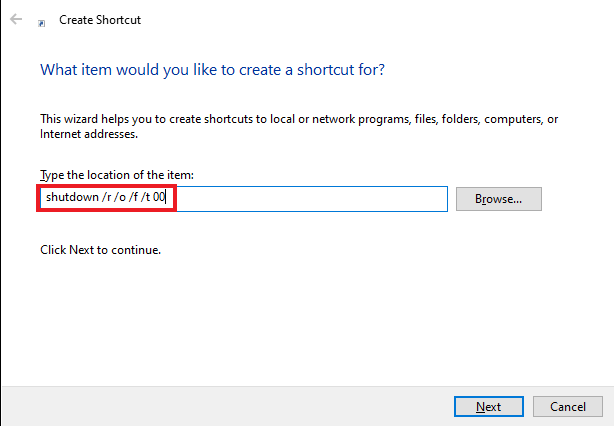
- Finish the wizard to save the shortcut.
From now on, double-clicking that shortcut and picking Troubleshoot > Advanced options > UEFI Firmware Settings, followed by Restart, will drop you straight into the Windows 10/11 BIOS settings.

No Comments