After enough time using the same PC, you may notice things feel a little slower than they used to. Part of that can come down to "fragmentation" within the file system. Defragmenting your drive is one way to claw back some of that lost performance. This article walks through defragmenting a drive on Windows 10 step by step, and you can also lean on a tool such as Revo Uninstaller Pro, third-party software by VS Revo Group, to get there.
What does defragmentation actually mean on Windows 10?
Files on your hard drive are broken into small data blocks, and those blocks don't always end up sitting next to each other physically on the disk. That scattering is what's called fragmentation.
So how does it happen in the first place?
Fragmentation occurs because a file often has to be split into pieces to fit into the available space. As you use your PC day to day, files are constantly being written, deleted, and resized, so fragmentation is just a natural side effect. The more scattered a file's pieces are, the longer it can take to read or write that file.
Defragmentation rearranges those blocks so they sit closer together physically, which speeds up how quickly the drive can retrieve the data later on. Modern versions of Windows already handle this automatically, running a scheduled defrag on a weekly basis by default.
Even though this is less critical than it used to be on older machines, it's still worth knowing about. An external drive that happened to be disconnected during a scheduled defrag, for instance, will need to be optimized manually. We'll cover exactly how in the next section.
How to defragment your hard drive on Windows 10
You can use Revo Uninstaller Pro to reach the defragmentation tool quickly.
Here's how, step by step:
- Open Revo Uninstaller Pro and go to the Tools section.
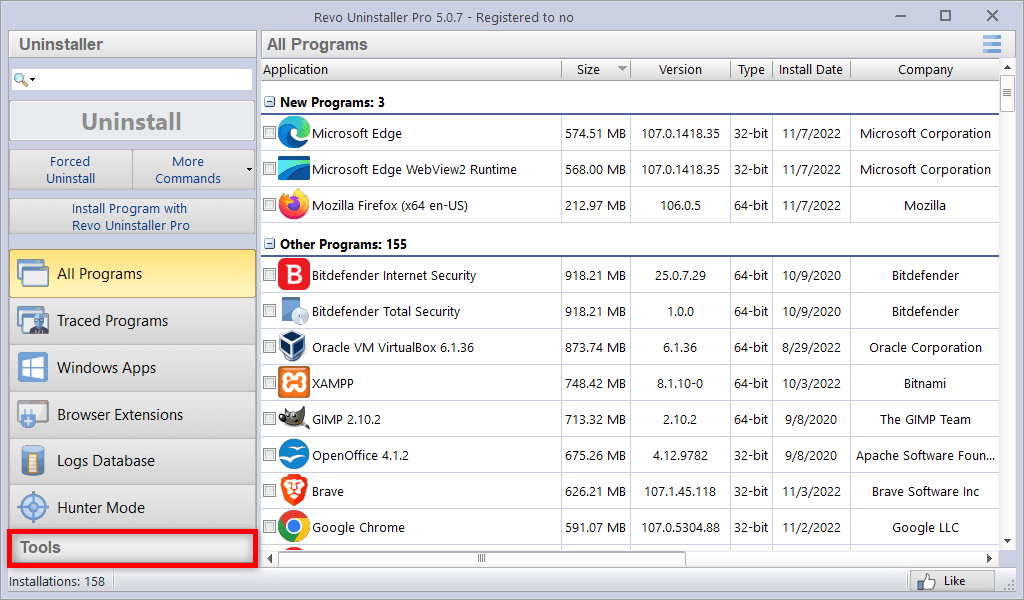
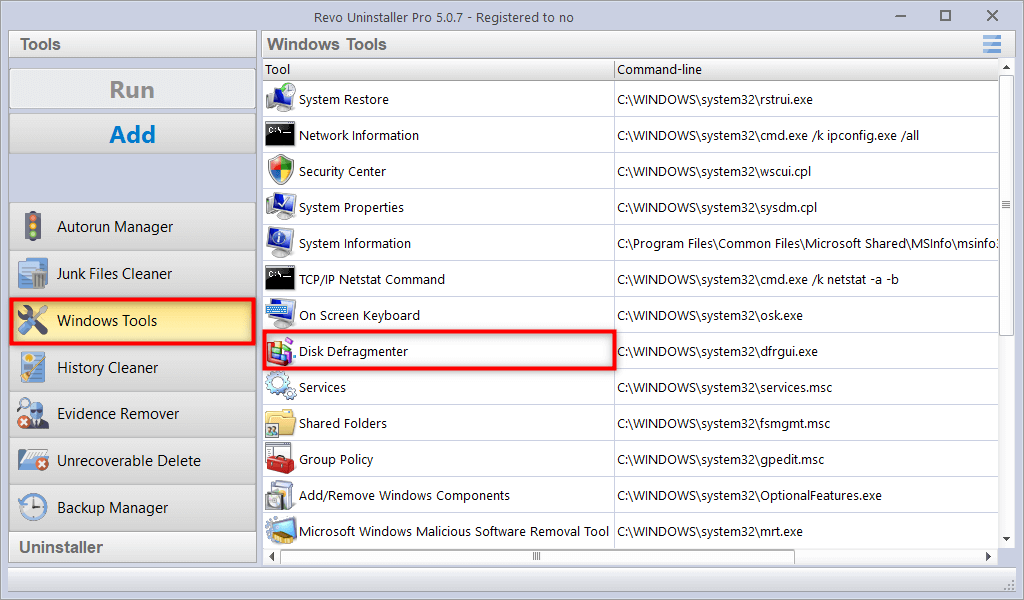
- Click Windows Tools, then double-click Disk Defragmenter to open Windows' built-in defragmentation utility. (You can also reach the Disk Defragmenter tool directly by opening the Start Menu and searching for "Defragment.")
- You'll see every drive that's eligible for optimization. Pick the one you want and click "Optimize."
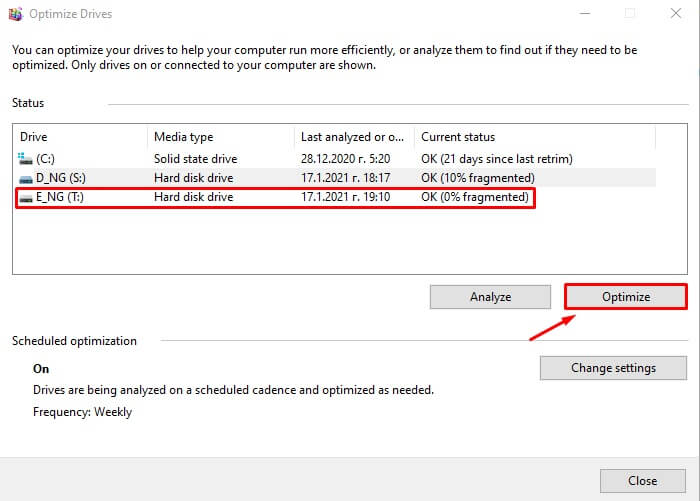
If the selected drive actually needs it, optimization will begin right away, and you can track progress in the Current Status column.
Once it's finished, the Last Run column updates and Current Status typically shows something like "OK (0% fragmented)."
You can also set up a recurring schedule from the same Optimize Drives window by clicking "Turn On" under "Scheduled Optimization," so your drives get defragmented automatically going forward.
Once it's running, you're free to close the window and keep using your PC as normal — you may even notice things feel a bit snappier afterward.
Notice we haven't mentioned SSDs yet — here's why.
Should you defragment an SSD?
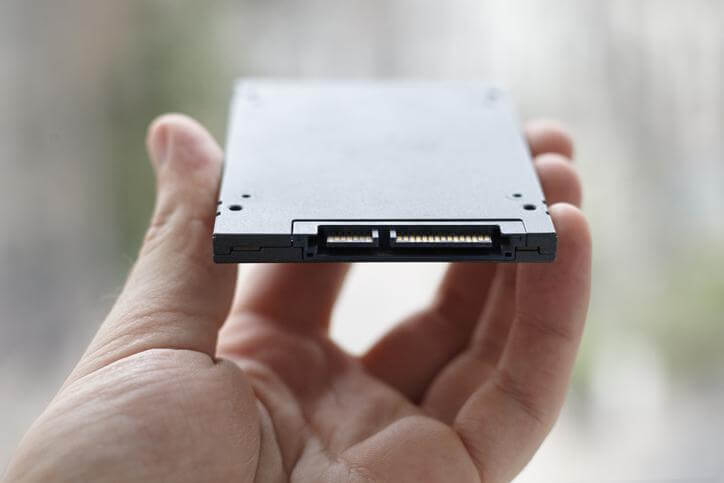
Short answer: no.
Defragmenting an SSD doesn't improve its performance, and it can actually shorten the drive's usable lifespan.
SSDs can technically become fragmented like any other drive, but there's no real downside to that. Because an SSD retrieves data electronically rather than mechanically, it doesn't matter where the data physically sits — access time stays essentially the same either way.
So why is defragmenting actually harmful to an SSD?
Every write-and-erase cycle wears down an SSD's memory cells a little. Modern SSDs can handle a substantial number of these cycles before performance drops off, thanks to wear-leveling technology that spreads writes evenly across the drive.
But defragmentation involves rewriting large amounts of data unnecessarily, and doing that regularly will wear out an SSD faster than normal use would.
Overall, defragmentation remains a useful maintenance step for traditional hard drives. Whether you use Revo Uninstaller Pro's shortcut to the built-in Defragment and Optimize Drives tool or open it directly, regular optimization can help keep file access speedy and your day-to-day computing experience smoother. Exploring the rest of the Windows Tools section in Revo Uninstaller Pro can also turn up a few other handy maintenance shortcuts worth using.

1 Comment
Sounds like it might be good to have.